
If you manage hybrid IT environments or Windows servers, sooner or later you will need to mount an Amazon S3 bucket, a Google Drive storage instance, or a remote Linux directory via SSHFS directly as a local drive letter on Windows (using tools like Rclone or SSHFS-Win). When doing so, you will inevitably rely on WinFSP.
But what exactly is this third-party driver, how does it operate under the hood of the Windows OS, and is it truly safe to run on critical enterprise production servers? In this technical guide, I evaluate its internal engineering, performance overheads, and security characteristics.
1. What is winfsp and the IPC architecture#
The Windows File System Proxy (WinFSP) is the open-source solution to the historical absence of a native FUSE (Filesystem in Userspace) API on Microsoft Windows operating systems.
Programming file systems at the kernel level in Windows is exceptionally complex. Memory allocation errors or null pointer dereferences inside the kernel space can corrupt memory structures, leading to system freezes or the infamous Blue Screen of Death (BSOD).
To avoid this, WinFSP implements a smart hybrid architecture that isolates file system logic from the kernel:
[ User-Space Application (Rclone/SSHFS) ]  ← Complex logic & networking
                     ↑
                     │ IPC (Inter-Process Communication)
                     ↓
         [ Driver winfsp-x64.sys ]         ← Minimal intercept & proxy
                     ↑
                     │ I/O Requests
                     ↓
[ Windows Kernel ]- Kernel Driver (
winfsp-x64.sys): Occupies a minimal footprint in the kernel space, registering a virtual file system and intercepting raw file Input/Output (I/O) requests. - User-Space Daemon: The kernel driver does not parse file system metadata or connect to networks. It forwards I/O requests via IPC to a user-space process (like Rclone).
- Resolution: The user-space daemon retrieves data blocks from the cloud or network and returns them to the WinFSP driver, which forwards them back to the OS. If the network drops or the user-space process crashes, the driver remains unaffected. The mount point will disconnect, but the host system remains stable.
2. Secure installation and integrity verification#
In secure production environments, it is critical to verify the integrity of any third-party kernel driver before registering it with the operating system.
Installation on Modern Windows (10 / 11 / Server 2016-2025)#
On modern Windows hosts, you can install WinFSP 2.x via Windows Package Manager (winget) or Chocolatey:
# Option 1: Native installation via Windows Package Manager (winget)
winget install WinFsp.WinFsp

# Option 2: Installation via Chocolatey
choco install winfsp -y
On modern systems, verify that the driver is signed and registered in the system drivers directory:
# Inspects digital signature of kernel driver binary on Windows 10/11
Get-AuthenticodeSignature "$env:SystemRoot\System32\drivers\winfsp-x64.sys"
The expected status should return categorically as Valid.
Legacy Windows Survival Runbook (Windows 7 / Server 2008 R2)#
If you maintain legacy hypervisors, air-gapped industrial VMs, or migration labs running Windows 7 x64 or Windows Server 2008 R2, standard installation guides will fail immediately:
1. Lack of winget in legacy environments#
Modern package managers do not exist on legacy Windows systems. Attempting to invoke winget results in:
C:\Users\Docker>winget
'winget' is not recognized as an internal or external command,
operable program or batch file.
2. Dedicated compatible release (WinFsp 1.12)#
The last official build family supporting Windows 7 is WinFsp 1.x. The recommended production binary is winfsp-1.12.22339.msi:
Package: winfsp-1.12.22339.msi
SHA-256: 45552d9c11f9681471108703f3ed600feda5b756a91863a5397c348cd01b193d
3. The kernel driver signature hurdle (UnknownError)#
Windows 7 x64 strictly enforces WHQL digital signatures for all kernel drivers. Because Windows 7 SP1 originally lacks native SHA-2 cryptographic support in its code integrity engine (ci.dll), modern SHA-2 signed driver binaries fail kernel validation:
# Inspect driver digital signature in PowerShell
Get-AuthenticodeSignature "C:\Program Files (x86)\WinFsp\bin\winfsp-x64.sys" Notice that on WinFsp 1.x, the binary is located in
C:\Program Files (x86)\WinFsp\bin\winfsp-x64.sys rather than System32\drivers.
4. Lab insight: why testsigning on DOES NOT resolve Error 577#
Many tutorials on the web recommend enabling test mode using bcdedit /set testsigning on to attempt to bypass kernel driver signature verification:
:: Common attempt in online forums (tested on my workbench)
bcdedit /set testsigning on
shutdown /r /t 0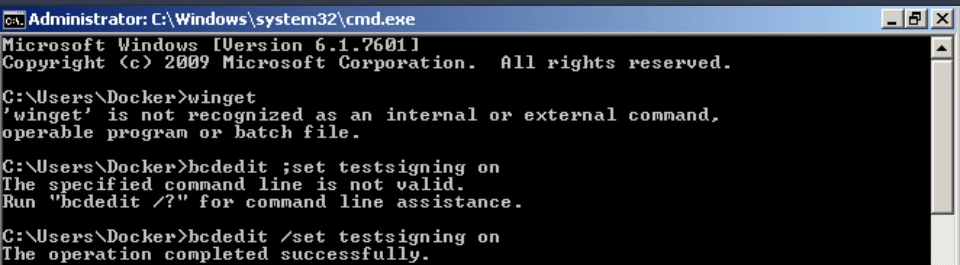 My practical lab discovery:
testsigning does not resolve error 577. Test-signing mode merely relaxes certificate trust chains for test certificates; it does not teach the Windows 7 SP1 kernel how to process or validate SHA-2 cryptographic hashes. The driver continues to be blocked with error 577 (ERROR_INVALID_IMAGE_HASH). The only real solution is updating the cryptographic engine with the official Microsoft KB3033929 patch, keeping standard secure boot policies intact.
Auditing driver runtime state via Service Controller#
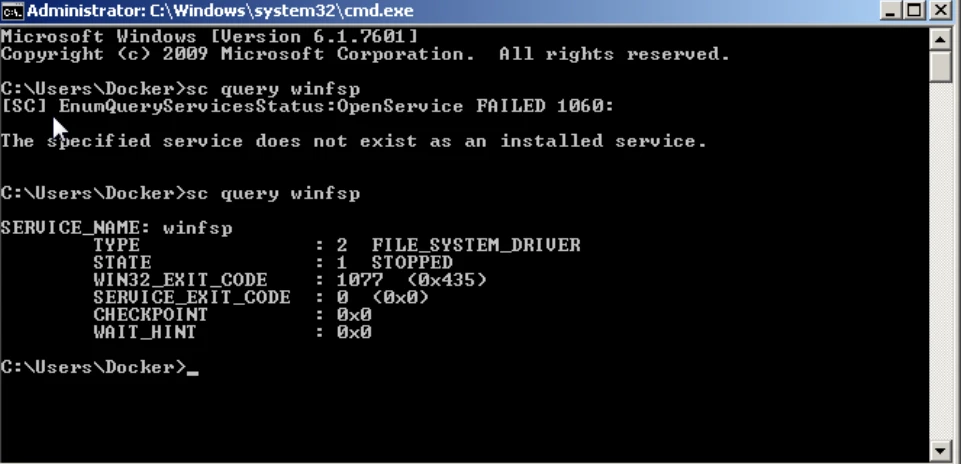
To inspect if the WinFsp service and filesystem driver have been successfully loaded into kernel memory, query the Windows Service Controller (sc.exe):
:: Check WinFSP service registration
sc query winfsp
Before installation, the query returns error 1060 (service does not exist). Once WinFsp is installed and the service is registered, it transitions to an initialized FILE_SYSTEM_DRIVER:
Troubleshooting Windows 7: Driver STOPPED and StartService Error 577#
If you continue experiencing errors when attempting to mount virtual drives on Windows 7, verify the service status again using sc query winfsp. If the state remains 1 STOPPED with win32 exit code 577 (0x241), attempting to manually start the driver will trigger a digital signature failure:
:: Attempt to manually start the stopped driver
sc start winfsp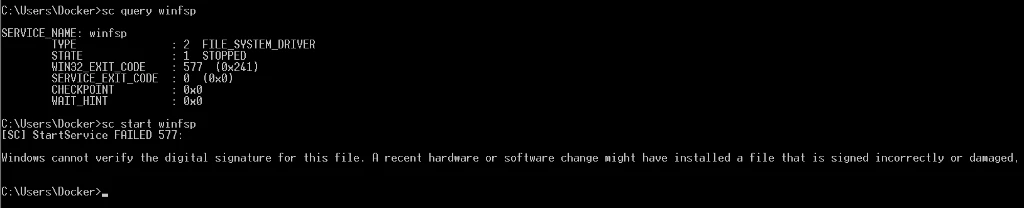
Root Cause and Definitive Fix (Windows 7 KB3033929 Security Patch): Out of the box, Windows 7 SP1 only understands legacy SHA-1 code-signing algorithms. Modern drivers signed with SHA-2 certificates fail kernel validation with error 577 (ERROR_INVALID_IMAGE_HASH). To resolve this, install Microsoft's official security update KB3033929 (Windows Update Standalone Installer):
:: Install SHA-2 kernel code-signing update silently
wusa.exe Windows6.1-KB3033929-x64.msu /quiet /norestart
shutdown /r /t 0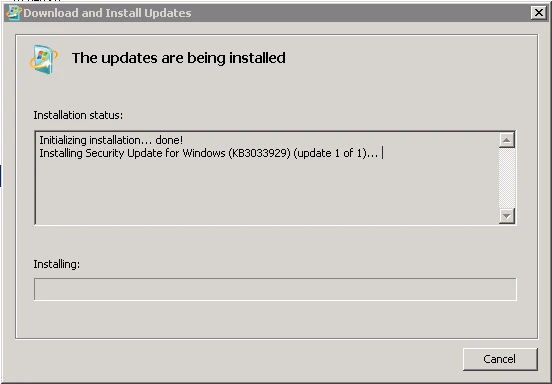
After rebooting with update KB3033929 applied, the WinFsp driver is fully accepted by the Windows 7 kernel and successfully enters the active running state:
sc query winfsp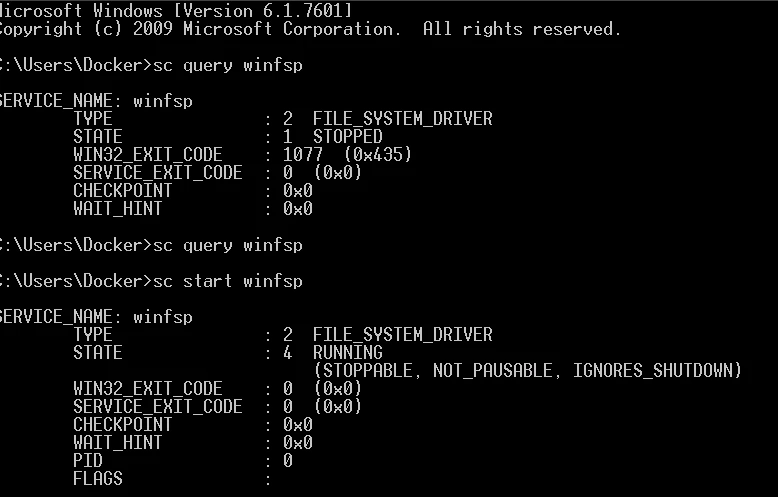
(On modern systems like Windows 10, 11, and Server 2016-2025, SHA-2 support is native and no extra updates are required).
3. Compatibility and production limitations#
While highly reliable, WinFSP has technical limitations that administrators must evaluate before deployment:
Operating system compatibility#
- Windows Client Editions: Windows 10 and Windows 11 (fully supported). Legacy support for Windows 7 SP1 and 8/8.1 via WinFsp 1.12 with the KB3033929 update installed (kernel SHA-2 support).
- Windows Server Editions: Windows Server 2012, 2016, 2019, 2022, 2025 (fully supported, requiring 64-bit architectures on modern versions).
Technical limitations#
- Incomplete NTFS Emulation: WinFSP emulates NTFS filesystems but does not support advanced proprietary NTFS features such as granular Active Directory Access Control Lists (ACLs) or Alternate Data Streams (ADS).
- Antivirus and EDR Interference: Antivirus engines or Endpoint Detection and Response (EDR) agents might flag driver operations or asynchronous network mounts as suspicious. You must configure exclusions for the mount paths and driver executables.
- System Reboots: Installing or updating the
winfsp-x64.sysdriver often requires a system reboot to reload the driver image into kernel memory safely.
4. Engineering comparison: winfsp vs. dokany#
Dokany is the main alternative FUSE-like filesystem driver for Windows. The table below outlines their primary architectural differences:
| Feature | WinFSP | Dokany |
|---|---|---|
| License | GPLv3 (commercial licensing available) | LGPL / MIT |
| Microsoft Signatures | Attestation-Signed by default | Varies by release (may trigger warnings) |
| Metadata Performance | High (optimized IPC architecture) | Moderate |
| Rclone Integration | Native and recommended default | Legacy / secondary |
| Primary Use Cases | SSHFS-Win, Rclone Mounts | Legacy Dokany SSHFS setups |
5. Performance benchmarks#
The runtime performance of a WinFSP mount is primarily limited by the user-space daemon's network latency (e.g. S3 cloud storage latency). However, the proxy driver overhead itself is minimal:
- Sequential Throughput: Reaches 80% to 90% of native NTFS speeds under identical physical storage hardware.
- Metadata Latency (directory traversal/file lookups): Exhibits a 10% to 20% increase compared to local NTFS, due to the IPC roundtrip overhead between kernel-mode and user-mode.
- CPU Overhead: The kernel proxy itself has negligible CPU consumption. The actual processing overhead is handled by the user-space process (encrypting and signing packets for network transmission).
6. Practical setup: mounting a virtual directory with Rclone#
The runbook below demonstrates how to install Rclone, configure a Google Drive remote, and mount it as a virtual Windows drive letter using WinFSP:
Installing Rclone#
- On Modern Windows (10/11): Install via winget:
winget install Rclone.Rclone. - On Legacy Windows (7/8): Winget is unavailable and modern Go-compiled Rclone releases fail. Download the last compatible release: Rclone v1.63.1 (rclone-v1.63.1-windows-amd64.zip), extract the binaries, and add the directory to your system
PATH.
Configuring the Google Drive remote step-by-step#
I use Google Drive for this setup. Before launching the wizard, it is strongly advised to create dedicated OAuth 2.0 credentials in Google Cloud Platform to prevent API throttling (HTTP 429: Too Many Requests). See my step-by-step guide How to Create Google Cloud OAuth Client ID and Client Secret for Google Drive.
With your credentials ready, open your command prompt and run:
rclone configStep 1: Remote creation in wizard#
Press n for a new remote (New remote):
e) Edit existing remote
n) New remote
d) Delete remote
r) Rename remote
c) Copy remote
s) Set configuration password
q) Quit config
e/n/d/r/c/s/q> n
Choose an intuitive remote name (such as googledrive or gdrive).
Step 2: Storage provider selection#
Type drive to select Google Drive: 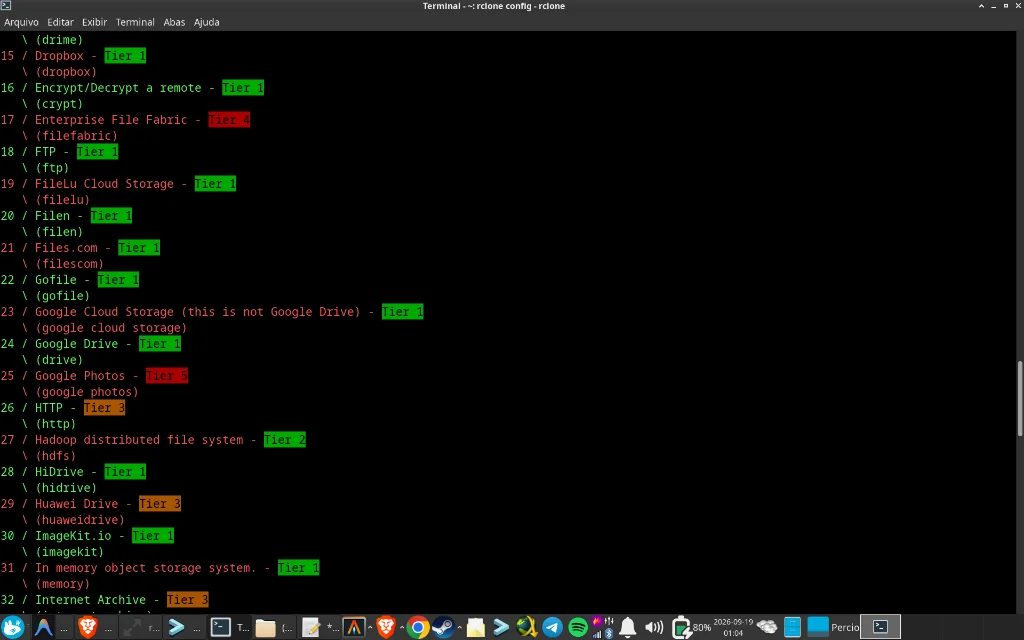
Step 3: Dedicated Client ID and Client Secret#
Paste your custom Google Cloud Client ID followed by your Client Secret: 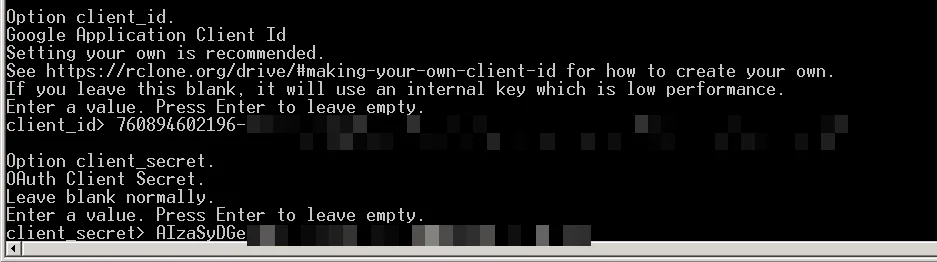
Step 4: Access scope selection#
Enter 1 to choose full access (drive - Full access all files, excluding Application Data Folder): 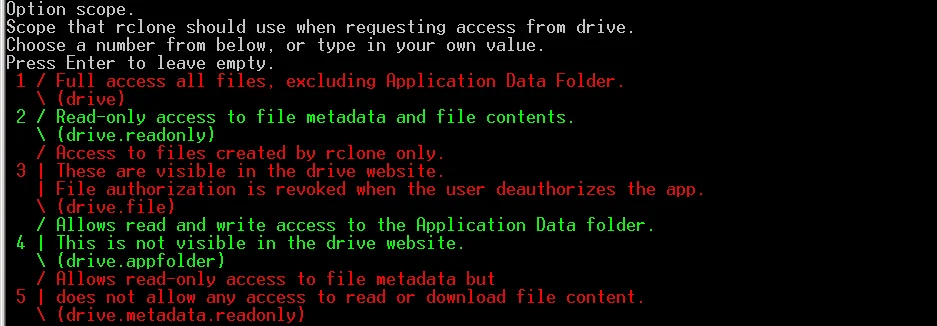
Step 5: Service account and advanced config#
Press Enter to leave service_account_file blank, and enter n when asked Edit advanced config?: 
Step 6: Automatic web browser auth#
Press Enter to accept automatic web browser authorization (y): 
Step 7: Browser authorization (OAuth Loopback)#
Rclone generates a local callback URL (http://127.0.0.1:53682/) and waits for your consent: 
Step 8: Confirming authentication and token reception#
Complete the login flow in your default browser. Once authorized, the console displays Got code: 
Step 9: Team Drives and config confirmation#
When asked Configure this as a Shared Drive (Team Drive)?, press Enter (n). Review the generated token configuration and press Enter (y) to keep the remote: 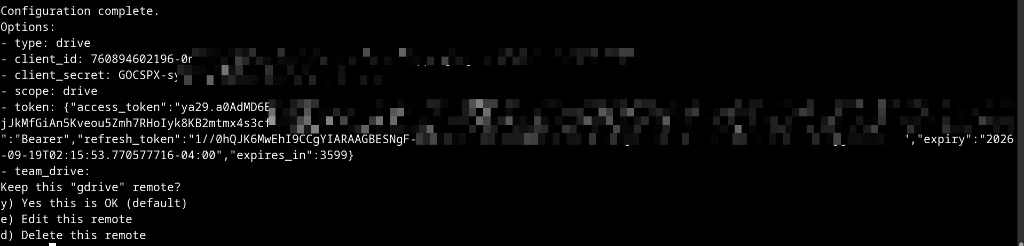
Your Rclone cloud remote is now fully configured and ready for mounting!
Mounting the Virtual Drive with WinFSP#
With configuration complete, mount the Google Drive remote to a local Windows drive letter using:
rclone mount NOME_DA_CONFIG: DRIVE_LETTER: --vfs-cache-mode full --network-mode1. Verifying your remote name: Replace NOME_DA_CONFIG with the exact remote name you created. To inspect configured remotes:
:: Reveals active rclone.conf path
rclone config file

:: Lists all configured remotes
rclone listremotes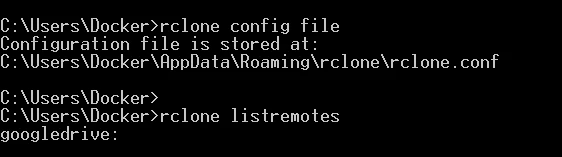
For example, if your remote is named googledrive:, your mount command will be:
rclone mount googledrive: G: --vfs-cache-mode full --network-mode2. Drive letter availability: Always ensure your targeted drive letter (e.g., Z: or G:) is unused in Windows Explorer! If Z: is already occupied by a secondary drive, USB stick, or existing network share, simply substitute an available letter (such as G:, X:, or S:).
The --vfs-cache-mode full flag is essential in production to mitigate metadata latency by caching file system reads and writes locally in asynchronous memory buffers.
Troubleshooting: 'Cannot create WinFsp-FUSE file system: unspecified error'#
If your mount command aborts immediately with the following fatal error in the console:
C:\Users\Docker>rclone mount googledrive: G: --vfs-cache-mode full --network-mode
2026/09/19 07:36:05 NOTICE: Time may be set wrong - time from "www.googleapis.com" is 6h59m26.2412109s different from this computer
Cannot create WinFsp-FUSE file system: unspecified error.
2026/09/19 07:36:05 ERROR : Google drive root '': Mount failed
2026/09/19 07:36:05 Fatal error: failed to mount FUSE fs: mount stopped before calling Init: mount failed
Actual Root Cause: WinFsp Driver Stopped (STOPPED / Error 577) Contrary to what the log might initially suggest, the warning NOTICE: Time may be set wrong... is merely an informational notice from Rclone — it does not abort the FUSE filesystem initialization. The mount actually fails with Cannot create WinFsp-FUSE file system: unspecified error because WinFsp's user-mode library attempts to communicate with the kernel driver and finds the winfsp service in the STOPPED state.
1. Mandatory Step — Diagnose and start the WinFsp driver: Check the service state from an elevated Administrator command prompt:
sc query winfspIf the returned state is STATE : 1 STOPPED, attempt to start it manually:
sc start winfspIf the start command fails with [SC] StartService FAILED 577, Windows 7 is missing the required KB3033929 security update, or the machine has not yet been rebooted post-patch. The service is only ready for Rclone once the query returns:
STATE : 4 RUNNING2. Complementary Hygiene — System Clock Synchronization (Preventing HTTP 401 & Token Refresh Failures): While clock skew alone does not prevent WinFsp from creating the virtual drive once the driver is RUNNING, an unsynchronized system clock causes immediate authentication failures down the line: the Google Drive API will reject SSL certificates and fail OAuth 2.0 token refreshes with 401 Unauthorized or 429 errors. To prevent cloud access interruptions, synchronize your Windows system clock with official NTP servers:
:: Force immediate clock resynchronization with network NTP server
w32tm /resync
Final Validation: Service Initialization and Windows Explorer Access#
With the WinFsp driver in STATE: 4 RUNNING and your system clock accurately synchronized, re-execute the mount command:
rclone mount googledrive: G: --vfs-cache-mode full --network-modeOnce API authentication succeeds and the FUSE interceptor binds the drive, Rclone will confirm that the background service has started with the message The service rclone has been started.:

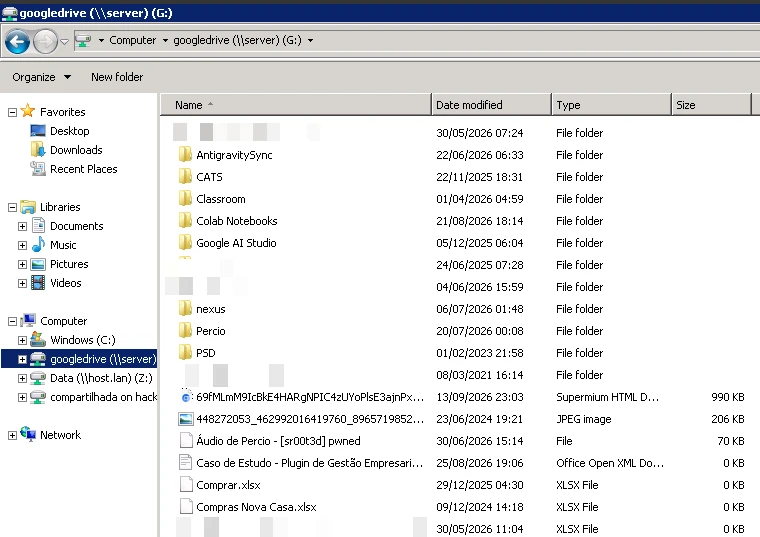
Now open Windows Explorer and navigate to the assigned drive letter (in my test, googledrive (\\server) (G:)). All your remote cloud folders and files are immediately accessible, allowing native read and write operations just like a physical local disk:
Production takeaways#
The WinFSP project, maintained by primary author Bill Zissinopoulos under the GPLv3 license on the official GitHub repository, is a robust piece of software. By keeping complex networking logic in user-space and limiting kernel operations to simple proxy tasks, it ensures that network failures or user-space crashes will not crash the host operating system with a Blue Screen of Death (BSOD).
Related Guides & Series Navigation#
- ⬅️ Previous in Windows Systems: How to Edit the Hosts File in Windows Without Permission Errors
- ➡️ Next in Windows Systems: Removing Stuck WinFsp on Windows: MSI Diagnostic & Forced Clean Removal
- 🇧🇷 Versão em Português: Winfsp no Windows: o que é, por que é seguro e como opera sob o capô
- 💬 Have you tested WinFsp with S3, WebDAV or Google Drive? Share your mount parameters, cache settings, or performance benchmarks in the comments below.
Was this article helpful?
Leave a quick reaction to help prioritize future technical guides:
See also




This post is licensed under CC BY-NC.
Comments
Join the discussion below.
0 comments