Senior Guide: Recovering Devices with Revoked Drivers (Code 52) on Windows#
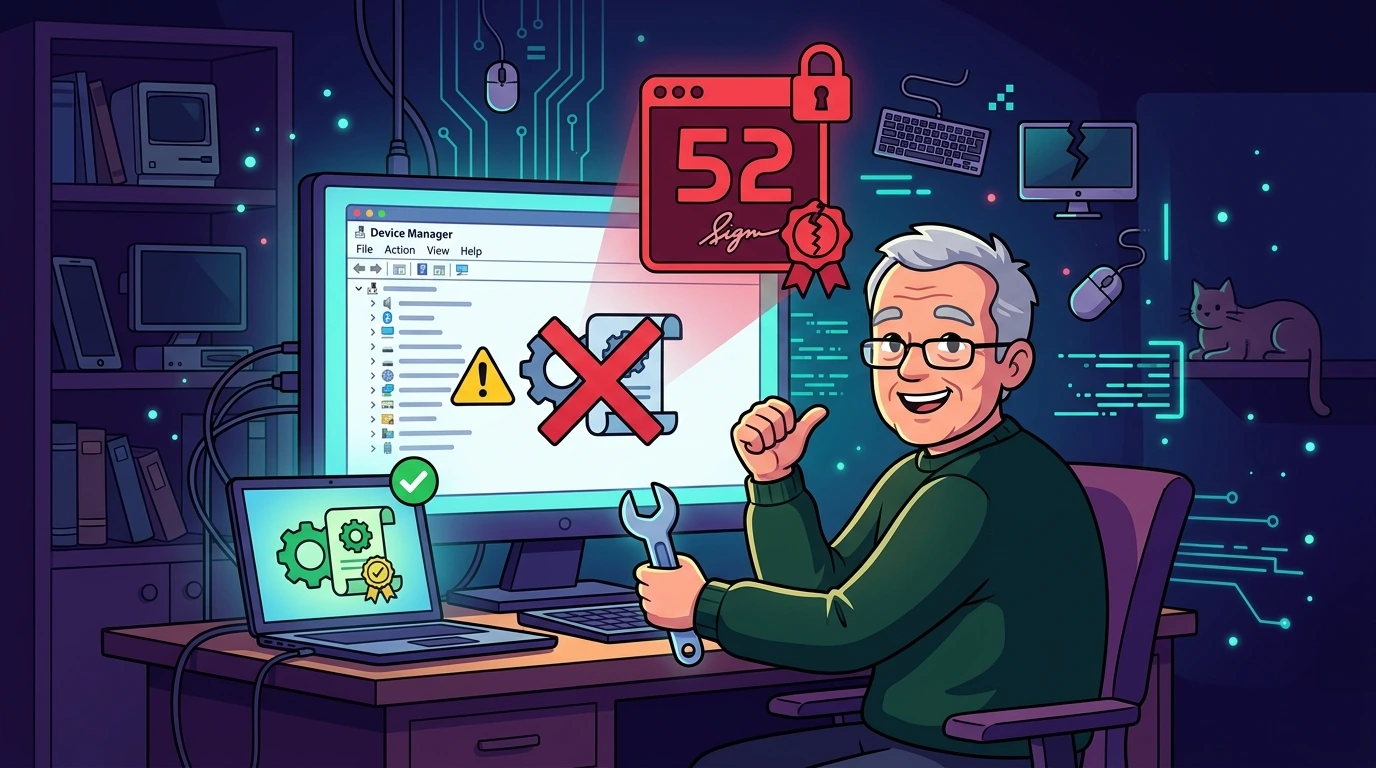
After a Windows update, legacy devices such as older Bluetooth adapters or Wi-Fi cards may suddenly stop working. In Device Manager (devmgmt.msc), these components display a yellow warning icon with the following error:
"Windows cannot verify the digital signature for the drivers required for this device (Code 52)"
This error is a direct reflection of Microsoft's security policy, which revokes the digital certificates of legacy drivers vulnerable to kernel privilege escalation exploits. This guide details how to diagnose the error, explore safer alternatives to the bypass, and follow the operational workflow for manual recovery.
1. Root cause: kernel security hardening#
Microsoft continuously expands its vulnerable driver blocklist. Drivers from older, popular brands (such as legacy Ralink, Atheros, or Realtek packages) contain structural vulnerabilities that allow attackers to execute malicious code with kernel privileges, bypassing filesystem isolation.
In response, Windows cumulative updates permanently revoke trust in these signing keys. The practical side effect is that while the hardware remains physically functional, Windows blocks its execution due to a digital integrity failure.
2. Decision tree and security trade-offs#
Disabling operating system security controls must always be treated as a last resort. Before proceeding with boot-level modifications, use the decision trees below to guide your decision-making and evaluate security compromises:
Security trade-off evaluation:#
Checking safer alternatives and hardware info via PowerShell:#
Before modifying the system signing settings, audit the installed drivers and the exact system hardware model to check for compatibility:
# 1. List detailed information about the current Bluetooth/Wi-Fi drivers
Get-WindowsDriver -Online | Where-Object { $_.OriginalFileName -like "*Bluetooth*" -or $_.OriginalFileName -like "*Wi-Fi*" }

# 2. Retrieve official system manufacturer and model details
Get-WmiObject Win32_ComputerSystem | Select-Object Model, Manufacturer
Note: Always consult the Microsoft Update Catalog or the manufacturer's official support portal using the gathered model details.
3. System restore checkpoint, bitlocker, and environment audit#
Before modifying any boot settings, ensure system backups are made and active security modules are audited.
Fallback backup and system restore:#
Restauration cmdlets can fail on servers if system protection is disabled in registry policies. Use the following validation logic in PowerShell to capture a system checkpoint or execute alternative file/registry backups:
# Check if System Restore is active and create a restore point
$sr = Get-ComputerRestorePoint -ErrorAction SilentlyContinue
if ($sr -ne $null) {
    Checkpoint-Computer -Description "Before installing revoked driver" -RestorePointType MODIFY_SETTINGS
} else {
    Write-Host "System Restore is disabled. Executing alternative physical backups..."
    # Backup the legacy driver package folder
    Copy-Item "C:\Drivers" "C:\Drivers-backup-$(Get-Date -Format yyyyMMdd)" -Recurse -Force
    # Export system service keys for registry backup
    reg export "HKLM\SYSTEM\CurrentControlSet\Services" "$env:USERPROFILE\Desktop\services-backup.reg"
}
(The registry export backup file will be created at services-backup.reg on the desktop).
Verify the active Windows version and build compatibility, as executing very old drivers can cause system instability or severe Blue Screen of Death (BSOD) crashes in modern Windows 11 builds:
# Check the active Windows version
(Get-ItemProperty "HKLM:\SOFTWARE\Microsoft\Windows NT\CurrentVersion").DisplayVersion

# Retrieve detailed system build information
systeminfo | findstr /B /C:"OS Name" /C:"OS Version"
Next, audit the current status of Secure Boot. If Secure Boot is enabled in the UEFI firmware, Windows will block transition into Test Mode. The following snippet handles systems lacking UEFI modules without crashing:
# Verify if Secure Boot is active in the operating system in a resilient manner
if (Get-Command Confirm-SecureBootUEFI -ErrorAction SilentlyContinue) {
    try {
        $sb = Confirm-SecureBootUEFI
        Write-Host "Secure Boot active: $sb"
    } catch {
        Write-Host "Secure Boot not supported or error reading UEFI firmware."
    }
} else {
    Write-Host "System does not support UEFI Secure Boot or cmdlet module is missing."
}
4. Integrity validation of the legacy driver#
To mitigate the risk of installing corrupt or malware-injected binaries, audit the digital signatures and SHA256 hashes of the driver's rt2860.sys files:
# Validate the digital signature details of the legacy driver
Get-AuthenticodeSignature "C:\Drivers\rt2860.sys"

# Generate the SHA256 hash of the file for auditing and verification
Get-FileHash "C:\Drivers\rt2860.sys" -Algorithm SHA256
Cross-reference the generated hash with the Microsoft driver revocation documentation to check if the file is listed on global blocklists.
5. Recovery procedure: test mode and native manual signing#
To force the acceptance of the revoked driver, you must configure Windows to temporarily ignore strict driver signature enforcement.
Step 1: Disable secure boot#
Restart the host, enter the BIOS/UEFI configuration menu, and change the Secure Boot status to Disabled. Save settings and reboot the machine.
Step 2: Enable test mode (testsign) natively#
Instead of downloading unknown third-party tools to enable test mode, configure the settings natively and securely using the bcdedit.exe utility, specifying {default} to avoid broad system profile issues:
# Enable the loading of test-signed kernel-mode drivers (Testsign) for the default loader
bcdedit /set {default} testsigning on
Restart the computer after running this command.
Step 3: Native manual signing (if required)#
If the driver package lacks any signature and Windows blocks it even in testsigning mode, you can sign the binaries manually using official Microsoft tools from the Windows SDK, avoiding unverified third-party binaries:
- Open PowerShell as Administrator and generate a self-signed code-signing certificate:
$cert = New-SelfSignedCertificate -Type CodeSigning -Subject "CN=LocalTestDriver" -CertStoreLocation Cert:\LocalMachine\My- Import the certificate into the Trusted Root and Trusted Publisher certificate stores of the system to establish trust:
   # Add to Trusted Root Store
   $rootStore = New-Object System.Security.Cryptography.X509Certificates.X509Store("Root", "LocalMachine")
   $rootStore.Open("ReadWrite")
   $rootStore.Add($cert)
   $rootStore.Close()

   # Add to Trusted Publishers Store
   $trustedStore = New-Object System.Security.Cryptography.X509Certificates.X509Store("TrustedPublisher", "LocalMachine")
   $trustedStore.Open("ReadWrite")
   $trustedStore.Add($cert)
$trustedStore.Close()- Sign the driver binary file
rt2860.sysusing the official Windows SDKsigntool.exe/Windows%20Kits/10/bin/x64/signtool.exe):
& "C:\Program Files (x86)\Windows Kits\10\bin\10.0.22621.0\x64\signtool.exe" sign /v /s My /n "LocalTestDriver" /t http://timestamp.digicert.com "C:\Drivers\rt2860.sys"Step 4: Forced driver installation#
Use the native command utility pnputil.exe to register and install the driver package:
# Register the driver package in the OS Driver Store
pnputil /add-driver "C:\Drivers\rt2860.inf" /install
Alternatively, to install via the graphical interface:
- Open Device Manager (
devmgmt.msc). - Right-click the affected device showing Code 52, and select Update Driver.
- Select Browse my computer for drivers > Let me pick from a list.
- Click Have Disk, browse to the
C:\Driversfolder, and selectrt2860.inf. - Accept the warning dialog by selecting Install this driver software anyway.
6. Resource conflicts and post-installation verification#
After installing the driver in Test Mode, verify that the device is running normally and check for hardware resource or physical IRQ conflicts:
# 1. Validate if the device status has successfully transitioned to OK
Get-PnpDevice -Status OK | Where-Object { $_.FriendlyName -like "*Bluetooth*" -or $_.FriendlyName -like "*Wi-Fi*" }

# 2. Check for WMI device configuration errors or conflict codes
Get-WmiObject Win32_PnPEntity | Where-Object { $_.ConfigManagerErrorCode -ne 0 } | Select-Object Name, ConfigManagerErrorCode

# 3. Audit assigned hardware interrupt (IRQ) resources and potential clashes
Get-WmiObject Win32_IRQResource | Where-Object { $_.IRQNumber -ne 0 } | Select-Object IRQNumber, Name
Inspect the system event logs to ensure that the driver is not failing silently at the kernel level:
# Query System event logs for recent driver loading errors or messages
Get-WinEvent -LogName "System" -MaxEvents 50 -ErrorAction SilentlyContinue | Where-Object { $_.Message -like "*driver*" }
7. Emergency rollback procedure#
If the operating system experiences crashes, freezes, or Blue Screens of Death (BSOD) after the driver is loaded, follow these steps to restore the security baseline:
# 1. Disable Windows Test Mode
bcdedit /set {default} testsigning off

# 2. Physically uninstall the custom driver
# Open devmgmt.msc, right-click the device, select "Uninstall device" (check "Delete the driver software for this device").- Re-enable Secure Boot: Reboot the host, enter BIOS/UEFI settings, and change the Secure Boot status back to Enabled. Save and boot into the operating system.
- Restore Previous State: If instabilities persist, restore the system state using the restore point created before the intervention or import the
services-backup.regfile in Safe Mode.
8. Checklist: revoked driver installation & safety audit#
Use this checklist to execute the procedure systematically and document the technical actions.
1. Diagnosis & pre-requisites#
- [ ] Confirm error code (Code 52) in Device Manager (
devmgmt.msc) - [ ] Check Windows Update and update catalogs for signed alternatives
- [ ] Verify active Windows version compatibility
- [ ] Check SHA256 hash of the legacy driver to verify binary integrity
- [ ] Check and back up the 48-digit BitLocker recovery key
- [ ] Create a system restore point or run registry backup (
services-backup.reg)
2. Environment execution#
- [ ] Backup original driver package files to
C:\Drivers - [ ] Temporarily suspend BitLocker protection in PowerShell
- [ ] Disable Secure Boot in BIOS/UEFI settings
- [ ] Enable native test signing:
bcdedit /set {default} testsigning on - [ ] Sign
rt2860.sysfiles manually with self-signed cert andsigntool.exe - [ ] Install the driver pointing to
rt2860.infviapnputil.exe - [ ] Verify that the Windows Test Mode watermark is visible after reboot
3. Post-installation & validation#
- [ ] Confirm device status displays OK using PowerShell (
Get-PnpDevice) - [ ] Test hardware functionality (pair a Bluetooth device or associate to a Wi-Fi network)
- [ ] Inspect System logs in Event Viewer (
eventvwr.msc) for kernel-level driver warnings - [ ] Document the decommission path for legacy hardware to return to a standard security baseline
9. Security gaps and impact table#
| Identified Gap | Operational Impact | Applied Technical Resolution |
|---|---|---|
| Recommending legacy DSEO utility (obsolete and unsigned). | Risk of executing unaudited binaries; modern AV/EDR block the file as PUP/malware. | Replaced entirely with a native workflow using New-SelfSignedCertificate and Windows SDK signtool.exe. |
Calling Confirm-SecureBootUEFI without error handling. | Command crash on legacy BIOS-based environments or servers lacking UEFI. | Wrapped checking command availability via Get-Command and handling exceptions with a try/catch block. |
Calling Checkpoint-Computer without checking System Restore status. | Command fails silently if system protection is disabled in server policies. | Added check that falls back to backing up driver folders and exporting services registry keys. |
| Disabling Secure Boot without accounting for BitLocker encryption. | Boot lockout on next restart requiring the 48-digit recovery key. | Inserted warnings on backing up keys and cmdlets to temporarily suspend BitLocker protection. |
Generic boot command bcdedit /set testsigning on without targets. | Risk of applying policies to incorrect boot entries or boot manager instances. | Targeted default boot loader instances using bcdedit /set {default} testsigning on. |
| Missing documentation on secondary risks of disabling Secure Boot. | Kernel integrity degradation due to disabling security layers (HVCI and VBS). | Added warning boxes detailing security compromises and compatibility issues with anti-cheat/DRM/banking apps. |
Was this article helpful?
Leave a quick reaction to help prioritize future technical guides:
See also


This post is licensed under CC BY-NC.
Comments
Join the discussion below.
0 comments