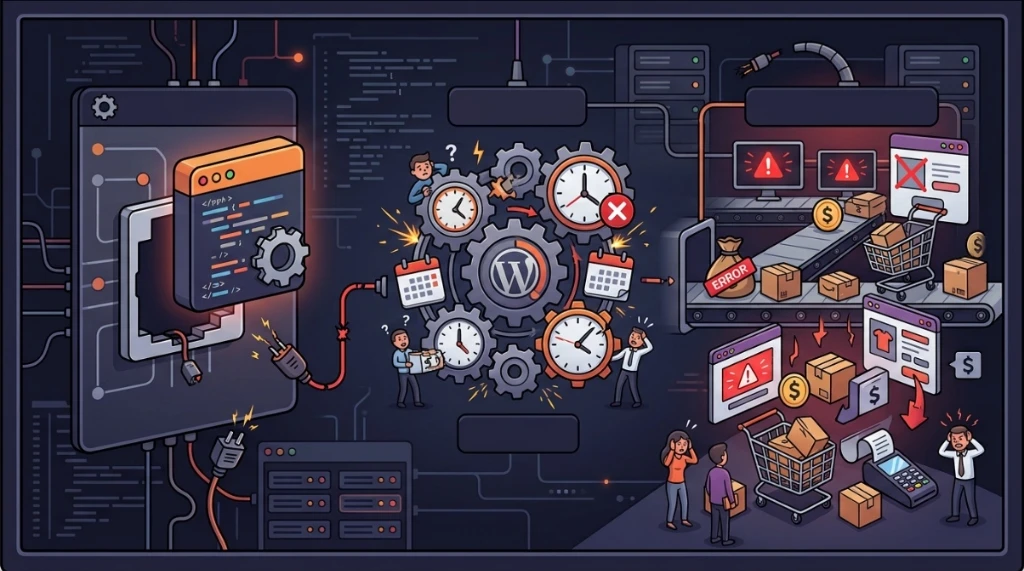
Anyone managing WordPress sites or WooCommerce stores knows that error messages do not always originate where they seem to. A silent failure in a low-level runtime component often cascades into symptoms that look like database table corruptions, disk quota exhaustion, or plugin conflicts.
Recently, I troubleshot a classic production case: whenever store administrators attempted to export products in WooCommerce, the dashboard halted with a "Critical Error" screen. Simultaneously, background task scheduling (WP-Cron) stalled, flooding logs with repetitive warning notices.
Here is the operational investigation that isolated the true root cause, eliminated misleading database theories, and restored stability by enabling the appropriate PHP extensions.
Initial symptoms in error_log#
Opening the application's error_log via terminal:
tail -f error_logThe output revealed a continuous stream of background scheduler warnings:
[06-May-2026 12:43:55 UTC] Erro de evento de reagendamento do cron para o gancho: wp_delete_temp_updater_backups, código de erro: could_not_set, mensagem de erro: Não foi possível salvar a lista de evento do cron, dados: {"schedule":"weekly","args":[],"interval":604800}
[06-May-2026 12:43:55 UTC] Erro de desativação de evento de cron para o gancho: wp_delete_temp_updater_backups, código de erro: could_not_set, mensagem de erro: Não foi possível salvar a lista de evento do cron...
[06-May-2026 12:44:03 UTC] PHP Warning:  Declaration of Jetpack_IXR_Client::query() should be compatible with IXR_Client::query(...$args) in .../plugins/jetpack/class.jetpack-ixr-client.php on line 30
Three factors stood out:
- The
could_not_seterror: In WordPress core, this notice occurs exclusively whenupdate_option('cron', $data)returns false, indicating the system attempted to save the updated event queue intowp_optionsand the database write failed to commit. - Plugin noise: The Jetpack method signature warning was merely a non-blocking deprecation notice.
- Critical Error on product exports: Whenever someone loaded WooCommerce product export routines, execution terminated with HTTP 500.
Ruling out false leads in the database and filesystem#
Encountering persistent could_not_set option write failures naturally raises several initial hypotheses:
- Did the serialized cron option balloon from accumulated transients?
- Did
wp_optionssuffer an auto-increment or primary key corruption? - Did disk quotas or file permissions lock the filesystem?
1. Checking the byte size of the cron option#
Querying MariaDB/MySQL to inspect the raw stored payload:
SELECT LENGTH(option_value) FROM wp_options WHERE option_name = 'cron';Result: 4830 bytes (~4.7 KB). This is an entirely standard size for an active site, ruling out buffer overflows or longtext column limits.
2. Inspecting the wp_options schema#
To verify that schema migrations had not dropped essential indexing or auto-increment properties:
SHOW CREATE TABLE wp_options;The output confirmed clean table integrity:
CREATE TABLE `wp_options` (
  `option_id` bigint(20) unsigned NOT NULL AUTO_INCREMENT,
  `option_name` varchar(191) NOT NULL DEFAULT '',
  `option_value` longtext NOT NULL,
  `autoload` varchar(20) NOT NULL DEFAULT 'yes',
  PRIMARY KEY (`option_id`),
  UNIQUE KEY `option_name` (`option_name`),
  KEY `autoload` (`autoload`)
) ENGINE=InnoDB AUTO_INCREMENT=3449613 DEFAULT CHARSET=utf8mb4 COLLATE=utf8mb4_unicode_520_ci
Primary keys, unique keys, and auto-increment properties were healthy. The counter at 3.4 million records operates well within InnoDB's bigint limits.
3. Filesystem permissions and disk quotas#
Auditing permissions in wp-content/uploads:
ls -la wp-content/uploadsDirectories held valid 0755 permissions owned by the application account. The hosting quota recorded 1.11 GB consumed out of 10 GB allocated. Both the database engine and filesystem were completely healthy.
Intercepting the hidden fatal error with WP_DEBUG_LOG#
Because base infrastructure was sound, enabling detailed logging in wp-config.php was necessary to capture the exact breakpoint:
define( 'WP_DEBUG', true );
define( 'WP_DEBUG_LOG', true );
define( 'WP_DEBUG_DISPLAY', false );
Upon reloading the WooCommerce product export interface, wp-content/debug.log immediately captured the runtime crash:
[06-May-2026 12:55:03 UTC] PHP Fatal error:  Uncaught Error: Class 'DOMDocument' not found in /home/user/public_html/wp-content/plugins/product-import-export-for-woo/admin/wt-ds/classes/class-wt-ds-template-engine.php:145
Stack trace:
#0 .../admin/wt-ds/class-wbte-ds.php(261): Wbte\Pimpexp\Ds\Classes\Wt_Ds_Template_Engine->render(Array)
...
[06-May-2026 12:55:04 UTC] jp-sitemap: -- WARNING: Jetpack can not load necessary XML manipulation libraries. This can happen if XML support in PHP is not enabled on your server. XML support is highly recommended for WordPress and Jetpack...
Root cause analysis: connecting domdocument to wp-cron failures#
The missing DOMDocument class belongs to PHP's native XML processing extension (php-xml / php-dom).
The connection between WooCommerce product exports and WP-Cron write failures was immediate:
- WooCommerce Product Exports: The export engine relies on XML processing to render templates and data streams. Instantiating
new DOMDocument()on a PHP binary lacking XML support triggered an unhandled Fatal Error, halting execution. - WP-Cron Failures: Background tasks (such as Jetpack sitemap generators and plugin update checkers) execute during the cron loop. Whenever cron dispatched these jobs, PHP hit the same missing class error and crashed mid-transaction. Because the PHP execution ended prematurely before the cron option could finish updating in MySQL, WordPress continuously reported
could_not_set.
Restoring missing PHP extensions#
For dedicated servers or VPS instances running RHEL/AlmaLinux/CentOS via CLI:
# Install XML extensions for your PHP version (e.g., PHP 7.4)
yum install php74-php-xml php74-php-dom
# Or on Ubuntu/Debian:
# apt install php-xml

# Restart daemons to load the newly compiled module
systemctl restart php-fpm
systemctl restart httpd   # or nginx
If managed via web control panels (e.g., cPanel PHP Selector):
- Navigate to Select PHP Version.
- Under the Extensions tab, verify and enable:
domandxml: Required for structured data handling, RSS feeds, and sitemaps.simplexml,xmlreader, andxmlwriter: Essential for data export/import workflows and REST APIs.bcmath: Mandatory for arbitrary-precision math in WooCommerce currency and tax calculations.zip: Enables native package compression and unzipping during plugin updates.imagick: High-performance raster image processing for product catalog photos.opcache: Keeps precompiled script bytecode in shared memory, minimizing CPU overhead.
Once the dom module was enabled, WooCommerce product exports rendered in under two seconds, and could_not_set errors ceased entirely.
Practical diagnostic checklist for WooCommerce environments#
Cron scheduling warnings and critical screens in WooCommerce often stem from low-level runtime dependencies rather than broken tables or faulty network connections.
Keep these troubleshooting habits in mind:
- Do not infer root causes from symptom logs alone: Cron write failures frequently signify that an earlier process died ungracefully before committing updates.
- Rely on
WP_DEBUG_LOGin production: It logs the precise stack trace without exposing raw errors to your storefront visitors. - Verify core PHP dependencies early: Modern e-commerce plugins rely on full XML parsing (
dom/xml), precision math (bcmath), and image processing (imagick). - Inspect the scheduled task queue: Use tools like WP-CLI (
wp cron event list) to confirm whether background jobs execute on schedule.
Tracing correlated failures down to their actual dependencies prevents wasted time and preserves stable application components.
Was this article helpful?
Leave a quick reaction to help prioritize future technical guides:
See also



This post is licensed under CC BY-NC.
Comments
Join the discussion below.
0 comments