
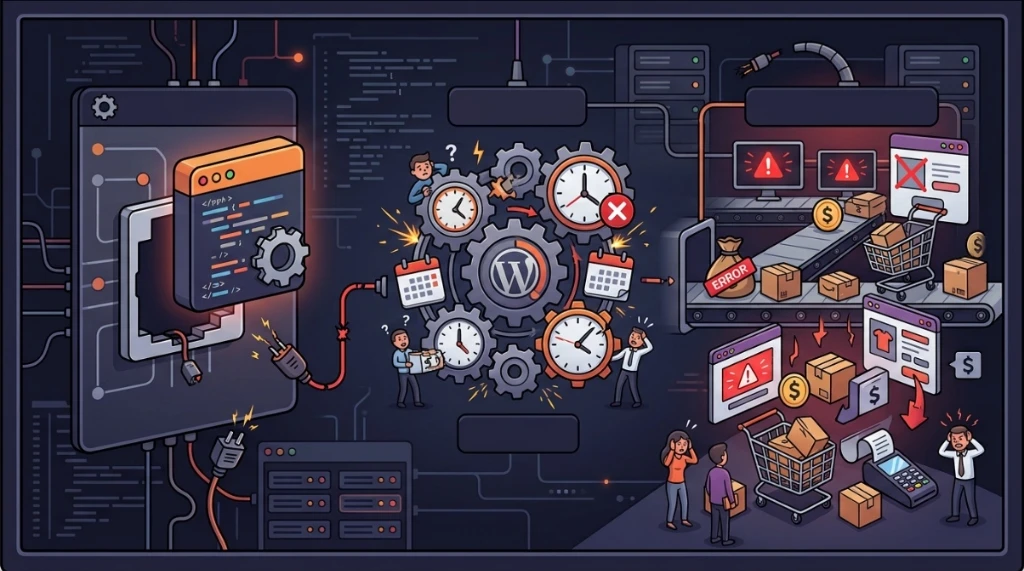
Over the years handling urgent support calls for crashed WordPress servers, I lost count of how many times I encountered the infamous white screen of death caused by a single misplaced comma in a theme file. In almost every situation, the story was identical: the site administrator found a code snippet online promising a quick fix, pasted it into functions.php using the built-in dashboard editor, and the entire website went down immediately.
At the same time, I frequently see WordPress environments dragging sluggish response times because administrators installed fifteen separate plugins for trivial tasks: one plugin to remove the WordPress version from the head, another to disable emojis, another to shut down XML-RPC, and yet another to allow SVG file uploads.
The theme's functions.php file exists precisely to prevent that dependency sprawl. When you understand how it actually works, you gain full control over the application and eliminate unnecessary third-party overhead. Below, I break down this file's architecture, share practical snippets I rely on in production, and detail the safeguards needed to edit code without breaking live environments.
The wp-functions.php myth and where the file actually lives#
A recurring question on support forums concerns a file allegedly named wp-functions.php. That filename simply does not exist in standard WordPress architecture.
The confusion usually arises between two very distinct files:
wp-includes/functions.php: This file belongs to the WordPress core. It holds fundamental utilities for sanitization, string parsing, and date manipulation. You must never edit this file. Any modification here will be overwritten during the next automatic WordPress update and can compromise system stability.wp-content/themes/your-theme/functions.php: This is the correct file. It belongs to the currently active theme and functions as a programmatic extension of that layout. Everything written inside it loads alongside the active theme.
There is also an important architectural detail: when running a Child Theme, WordPress first loads the Child Theme's functions.php, followed immediately by the Parent Theme's functions.php. This means the child does not replace the parent file: both coexist, with the child executing first.
How functions.php operates under the hood#
Unlike a presentation template (such as single.php or header.php), functions.php does not render direct HTML on the screen. It behaves like an embedded theme plugin.
The critical concept to keep in mind is its execution lifecycle: it runs on every single HTTP request processed by WordPress.
This includes:
- Standard front-end page visits.
- Administrator actions inside
/wp-admin/. - Asynchronous calls hitting
/wp-admin/admin-ajax.php. - API endpoints queried through
/wp-json/(REST API). - Background scheduled tasks (
WP-Cron).
Because it loads early during bootstrap, any fatal syntax mistake (such as an unclosed bracket or a missing semicolon) immediately halts the PHP process. WordPress cannot even reach the login screen, returning an HTTP 500 error to the browser.
The proper way to interact with WordPress inside this file is through Hooks:
- Actions (
add_action): Trigger custom logic at specific execution milestones (such as when the page head compiles or a post is saved). - Filters (
add_filter): Intercept internal data, modify that data, and return the filtered value before it renders or saves to the database.
How functions.php replaces dozens of plugins and keeps WordPress lightweight#
One of the biggest mistakes behind sluggish WordPress performance is installing a separate plugin for every minor tweak. When you add a third-party plugin just to disable comments, another to hide the software version, and another to limit revisions, you are not merely adding features: you are injecting significant overhead into your hosting stack.
Every active plugin introduces hidden operational costs:
- Database bloat (
wp_options): Most plugins write configuration rows flagged withautoload = 'yes'. This forces MySQL or MariaDB to load all those settings into RAM on every incoming request, even on pages where the plugin is completely inactive. - Front-end asset clutter (CSS/JS): Utility plugins frequently enqueue extra
.cssand.jsbundles across your entire site, even when those assets serve no purpose on the visited URL. This adds roundtrips, blocks critical rendering paths, and directly harms Core Web Vitals (such as LCP and FCP). - Execution hook overhead: WordPress must iterate through hundreds of registered
add_actionandadd_filtercallbacks on every HTTP cycle, increasing PHP runtime latency and server CPU consumption. - Expanded attack surface: Over 90% of known WordPress vulnerabilities and compromise vectors originate in third-party plugins that are either outdated or unmaintained.
Replacing this plugin sprawl with focused snippets inside functions.php fundamentally changes server efficiency. A clean ten-line PHP snippet runs in microseconds, writes zero junk to the database, requests no external scripts from visitors, and accomplishes the task without adding maintenance debt.
To streamline this workflow, I organized a dedicated library in my WordPress Snippets Catalog, where you can copy vetted, production-tested snippets. You can also explore the main WordPress Hub for additional auditing tools and server-level guides.
Practical snippets that eliminate extra plugins#
Here are five secure snippets I regularly use to trim bloat and reduce reliance on third-party plugins.
1. Cleaning up unnecessary head tags#
By default, WordPress injects numerous obsolete tags into the <head>, including version generators, legacy editor discovery links, and inline emoji detection scripts.
You can remove this overhead with a single clean block:
<?php
/**
 * Head cleanup: strips legacy tags and emoji scripts.
 */
function pc_cleanup_head_bloat() {
    // Remove WordPress version generator (security hygiene)
    remove_action('wp_head', 'wp_generator');

    // Remove obsolete feed and manifest discovery links
    remove_action('wp_head', 'rsd_link');
    remove_action('wp_head', 'wlwmanifest_link');
    remove_action('wp_head', 'wp_shortlink_wp_head');
    remove_action('wp_head', 'adjacent_posts_rel_link_wp_head', 10);

    // Disable emoji scripts and inline styles
    remove_action('wp_head', 'print_emoji_detection_script', 7);
    remove_action('admin_print_scripts', 'print_emoji_detection_script');
    remove_action('wp_print_styles', 'print_emoji_styles');
    remove_action('admin_print_styles', 'print_emoji_styles');
    remove_filter('the_content_feed', 'wp_staticize_emoji');
    remove_filter('comment_text_rss', 'wp_staticize_emoji');
    remove_filter('wp_mail', 'wp_staticize_emoji_for_email');
}
add_action('init', 'pc_cleanup_head_bloat');
This snippet saves HTTP roundtrips and prevents public broadcasting of your exact WordPress build version.
2. Disabling XML-RPC to eliminate attack vectors#
The legacy xmlrpc.php endpoint was built for remote publishing using older desktop applications. Modern REST APIs have superseded this interface. In hosting environments, XML-RPC is almost exclusively exploited for credential brute-force attacks and DDoS amplification via pingback.ping.
Instead of installing a dedicated security plugin just for this task, disable the handler directly:
<?php
/**
 * Fully disables XML-RPC and unsets pingback headers.
 */
add_filter('xmlrpc_enabled', '__return_false');

add_filter('wp_headers', function($headers) {
    unset($headers['X-Pingback']);
    return $headers;
});
If you use edge protection with Cloudflare, you can also block the /xmlrpc.php path directly on the edge WAF so malicious queries never reach your web server.
3. Controlling post revisions and autosave intervals#
Drafting lengthy guides triggers an autosave every minute. On active websites, this inflates the wp_posts table with duplicate rows, slowing down MySQL queries over time.
You can tune the autosave frequency directly in PHP:
<?php
/**
 * Extends autosave interval to reduce admin database writes.
 */
function pc_extend_autosave_interval() {
    return 180; // Autosaves every 3 minutes (180 seconds) instead of 60
}
add_filter('autosave_interval', 'pc_extend_autosave_interval');
To limit maximum revisions per post to 5 versions, place this directive in wp-config.php:
define('WP_POST_REVISIONS', 5);4. Securely enabling SVG image uploads#
Vector SVG graphics are ideal for sharp icons and logos, but WordPress blocks them natively for good reason: SVG files are XML markup that can embed malicious JavaScript payloads (Stored XSS).
Generic SVG plugins often create vulnerabilities by opening the MIME type without inspecting file content.
The secure approach allows the MIME type while validating file contents before writing to disk:
<?php
/**
 * Enables SVG uploads with basic sanitization checks.
 */
function pc_allow_svg_mime($mimes) {
    $mimes['svg'] = 'image/svg+xml';
    $mimes['svgz'] = 'image/svg+xml';
    return $mimes;
}
add_filter('upload_mimes', 'pc_allow_svg_mime');

function pc_sanitize_uploaded_svg($data, $file, $filename, $mimes) {
    $ext = pathinfo($filename, PATHINFO_EXTENSION);
    if (strtolower($ext) === 'svg') {
        $content = file_get_contents($file);
        // Abort upload if script tags or event handlers exist
        if (preg_match('/<script|onload|onerror|<foreignObject/i', $content)) {
            $data['ext'] = false;
            $data['type'] = false;
        }
    }
    return $data;
}
add_filter('wp_check_filetype_and_ext', 'pc_sanitize_uploaded_svg', 10, 4);
5. Sanitizing login failure messages#
When someone attempts to guess passwords on /wp-login.php, WordPress reveals whether the username exists with messages like "Unknown username" or "The password for admin is incorrect".
You can mask this user enumeration leak with two lines:
<?php
/**
 * Unifies login error notices to prevent username harvesting.
 */
function pc_generic_login_errors() {
    return 'Invalid login credentials. Please verify your details.';
}
add_filter('login_errors', 'pc_generic_login_errors');
Four essential safeguards for stable code#
Modifying PHP files requires strict operational discipline. I recommend four habits on every project:
1. Never edit the parent theme directly#
If you modify functions.php inside a repository theme (such as Astra, GeneratePress, or Kadence), the next security release from the developer will wipe out your modifications completely.
Always build a Child Theme and insert custom snippets into the child's functions.php, or place them inside wp-content/mu-plugins/ (Must-Use Plugins). Files in mu-plugins/ execute automatically in alphabetical order regardless of the active visual theme.
2. Always prefix function names#
In procedural PHP, two functions cannot share the same name in global scope. If you declare clean_header() and another plugin uses that exact function name, WordPress crashes with:
Fatal error: Cannot redeclare clean_header() (previously declared in...)Prefix every function with an identifier representing your project (e.g. pc_clean_header() or mybrand_cleanup()).
3. Run syntax validation in the terminal before deploying#
When managing hosting instances on DigitalOcean, Hetzner, or Vultr, avoid saving code blindly.
PHP ships with a native syntax linter flag:
php -l wp-content/themes/my-child-theme/functions.phpIf the syntax is valid, it returns:
No syntax errors detected in wp-content/themes/my-child-theme/functions.phpIf a semicolon or bracket is missing, it reports the exact line number before the code runs on the web server.
4. Omit the closing ?> tag at the end of the file#
When a PHP file contains only PHP code, do not add ?> on the final line.
An unnoticed blank line or whitespace character after ?> forces PHP to send output to the browser before WordPress can transmit HTTP session cookies or headers, causing:
Warning: Cannot modify header information - headers already sent by...Omitting closing tags is the official recommendation in PHP and PSR-12 coding standards.
Emergency recovery checklist: restoring a broken site#
If a snippet triggered an HTTP 500 error, stay calm and follow this fast recovery sequence:
Step 1: Activate the debug log#
Open wp-config.php via SFTP, SSH, or your hosting control panel (such as Plesk) and enable error logging:
define('WP_DEBUG', true);
define('WP_DEBUG_LOG', true);
define('WP_DEBUG_DISPLAY', false);
With WP_DEBUG_LOG enabled and WP_DEBUG_DISPLAY disabled, visitors do not see code warnings, but errors are written to:
wp-content/debug.logOpen that file and check the final entry. It will state the exact file and line number causing the crash.
Step 2: Comment out the offending snippet#
Open functions.php and prefix the broken line with // or wrap the block in / ... /. Save the file and refresh your browser.
Step 3: Fast recovery with WP-CLI#
If the admin panel is inaccessible and you have terminal access, WP-CLI switches to a clean fallback theme in seconds:
# List installed themes
wp theme list

# Activate default fallback theme
wp theme activate twentytwentyfour
Once the site responds, debug the snippet carefully and reactivate your child theme.
Knowing when to build a dedicated plugin#
The functions.php file is perfect for cosmetic hooks, layout tweaks, head cleanups, and visual customizations tied to a specific design.
However, if you are writing core business logic that must survive when switching themes in the future (such as custom post types for product catalogs, payment handlers, or webhook integrations), that code does not belong in a theme file.
For business-critical functionality, package your logic into a standalone file placed inside wp-content/mu-plugins/ or create a lightweight custom plugin. This keeps your WordPress installation modular, clean, and completely independent of bloated third-party plugin suites.
Was this article helpful?
Leave a quick reaction to help prioritize future technical guides:
See also

This post is licensed under CC BY-NC.
Comments
Join the discussion below.
0 comments