
How to install and use Who Follows Me#
If you are setting up the plugin for the first time, this guide walks you through the full process in a simple way. In just a few minutes, you will install the extension, pin its icon to the browser toolbar, and launch the analysis directly inside Instagram.
1. Installation#
Start by opening the official extension page on the Chrome Web Store:
Open Who Follows Me on the Chrome Web Store

On the extension page, click the blue Use in Chrome button or Add to..., depending on the browser you are using.
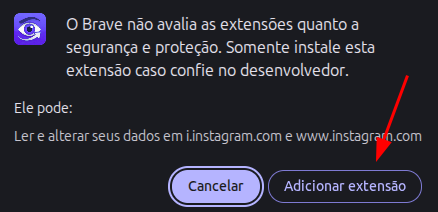
When the confirmation popup appears at the top of the screen, click Add extension to finish the installation.
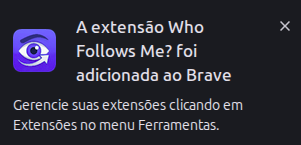
2. How to make the icon appear#
After installation, the browser may hide the extension icon by default. That is normal and takes only a few clicks to fix.
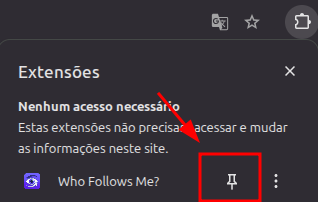
First, click the puzzle icon in the top-right corner of the browser, next to the address bar.
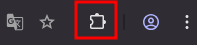
In the extensions list, find Who Follows Me.
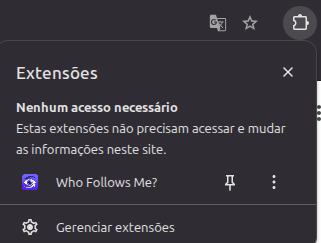
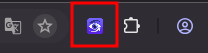
Then click the pin icon next to the extension name. After that, the shortcut will stay visible in your toolbar.
3. How to use it on Instagram#
With the extension installed and pinned, open Instagram in your browser and log in to your account as usual.
With Instagram already open, click the Who Follows Me icon in the toolbar.
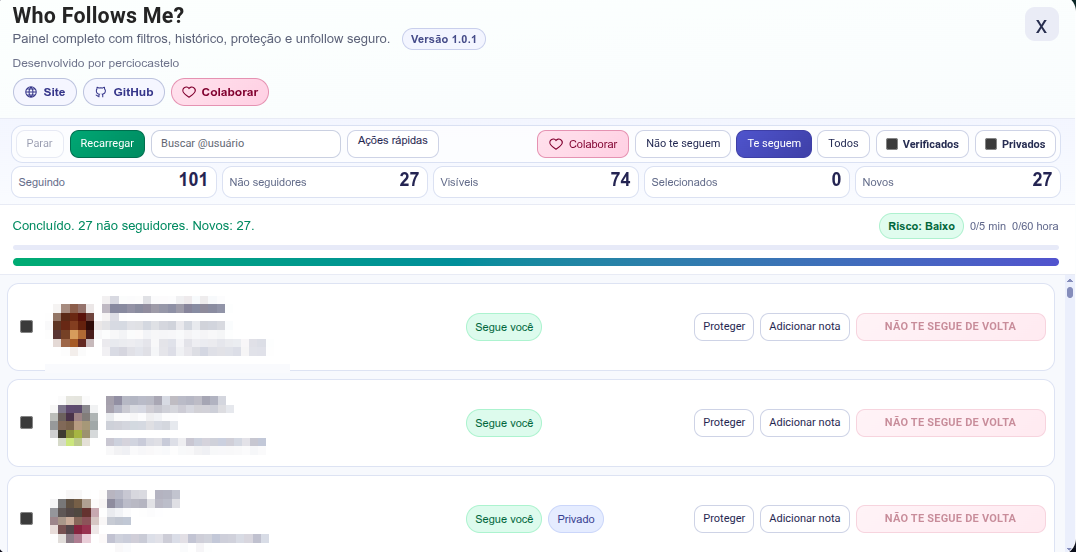
The extension will load automatically and open the analysis screen inside the Instagram page itself.
Compatibility#
Before using it, keep these limitations in mind:
- It works on Chrome, Brave, Opera, and Edge.
- It does not work on mobile devices.
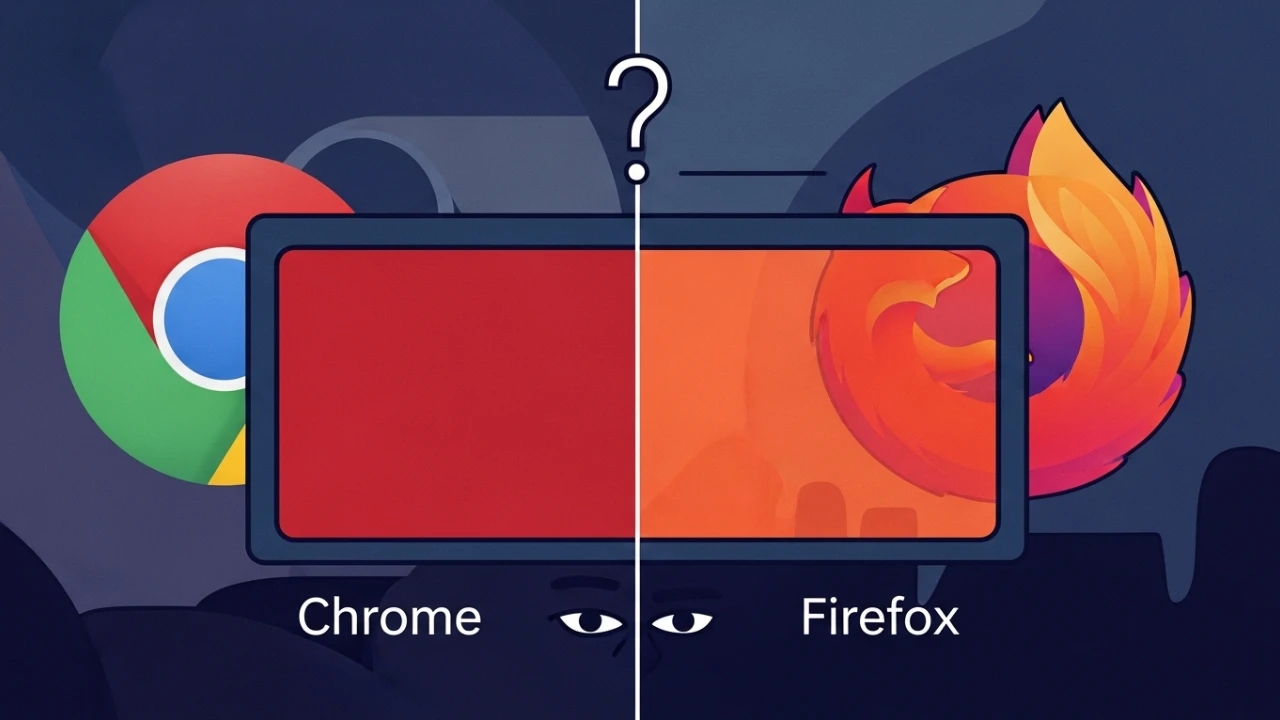
- It does not work on Firefox or Safari.
Production takeaways#
After this initial setup, you only need to open Instagram in your browser and click the extension icon whenever you want to start the analysis. If the icon disappears from the toolbar, go back to the extensions menu and pin it again.
Was this article helpful?
Leave a quick reaction to help prioritize future technical guides:
See also


This post is licensed under CC BY-NC.
Comments
Join the discussion below.
0 comments