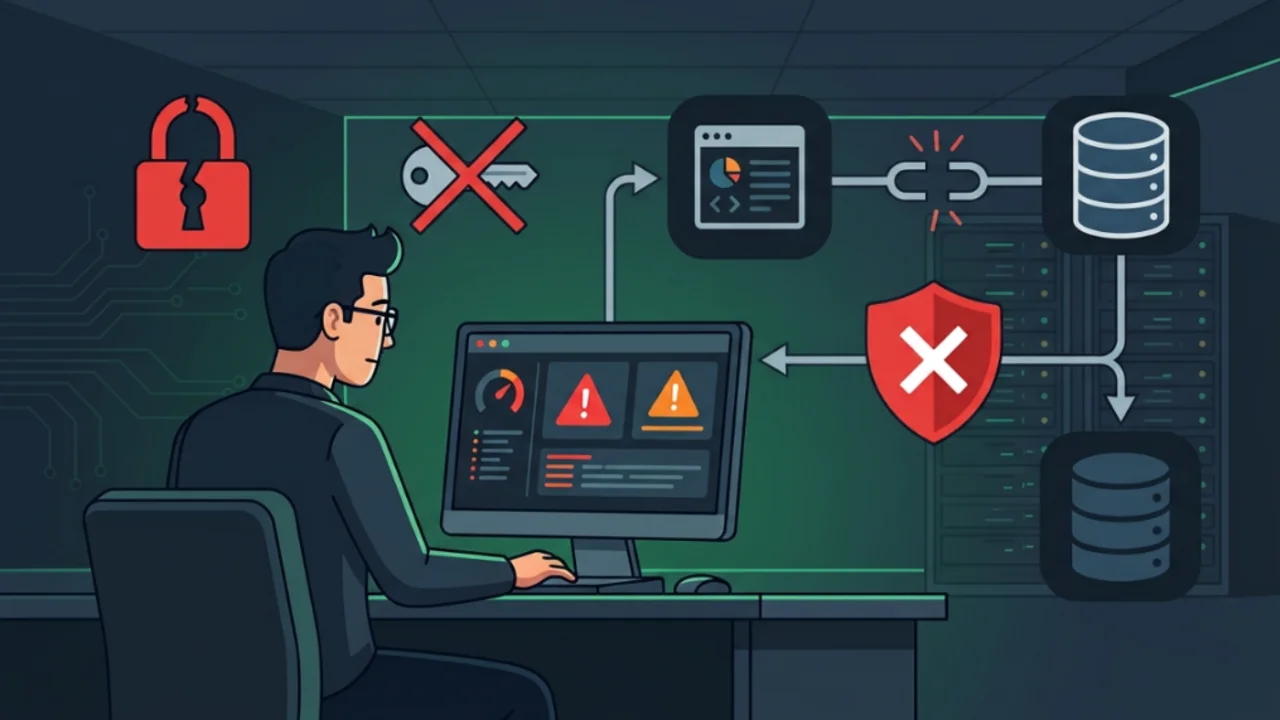
Anyone managing web hosting environments knows that even mature platforms like cPanel occasionally experience synchronization glitches. cPanel relies on a Single Sign-On (SSO) mechanism to log users directly into phpMyAdmin without prompting for separate database passwords. Issues arise when the internal mapping in cPanel loses sync with the grant tables in MariaDB or MySQL.
I ran into this exact issue recently. When opening phpMyAdmin from a cPanel account, the interface returned a fatal database exception:
mysqli_sql_exception: Access denied for user 'usuario'@'localhost' (using password: YES)phpMyAdmin was attempting to connect via the local socket using credentials for usuario, but the database server rejected the attempt because the stored password hash did not match.
Here is the step-by-step investigation, the native scripts that failed along the way, and how to fix the credentials directly inside the database engine.
1. Symptoms and Desynchronization Across cPanel, MariaDB, and phpMyAdmin#
cPanel organizes database access by mapping hosting accounts to their respective databases and database users. When you click the phpMyAdmin icon inside cPanel, the server generates a temporary SSO session token and routes the connection to localhost.
If the password recorded inside cPanel's internal datastores differs from the hash stored in MariaDB's mysql.user table, phpMyAdmin cannot establish a session. The end user gets locked out and cannot manage tables or run SQL queries through the browser.
2. First Response with Native cPanel Utilities#
When an issue occurs on cPanel, the standard first step is running the built-in maintenance tools.
I connected to the server via SSH as root to inspect account ownership and database privileges:
[root@servidor ~]# /usr/local/cpanel/scripts/updateuserdomains
[root@servidor ~]# /scripts/whoowns domain.com
usuario
The domain was properly linked to usuario. Next, I used the restoregrants utility to rebuild all database grants for that account:
[root@servidor ~]# /usr/local/cpanel/bin/restoregrants --cpuser=usuario --db=mysql --all
info [restoregrants] Updating grants for usuario
The script reported success. However, rebuilding grants only fixes database privileges (GRANT). If the actual password hash in MariaDB is mismatched or corrupt, the access denied error persists.
Next, I attempted to synchronize the account password across both the operating system and database services using chpass:
[root@servidor ~]# ALLOW_PASSWORD_CHANGE=1 /usr/local/cpanel/scripts/chpass usuario SenhaSegura2026!
warn [realchpass] Insecure passing of password on ARGV.
Password for “usuario” has been changed.
cPanel confirmed the update with Password for “usuario” has been changed. Yet, when reloading phpMyAdmin from the cPanel interface, the identical exception reappeared:
mysqli_sql_exception: Access denied for user 'usuario'@'localhost' (using password: YES)Isolating discrepancies between panel and database#
To determine why cPanel reported a successful password change while phpMyAdmin remained blocked, I tested authentication directly on the command line using the newly defined password:
[root@servidor ~]# mysql -u usuario -p'SenhaSegura2026!' -e "FLUSH PRIVILEGES;"
ERROR 1045 (28000): Access denied for user 'usuario'@'localhost' (using password: YES)
MariaDB rejected the password immediately.
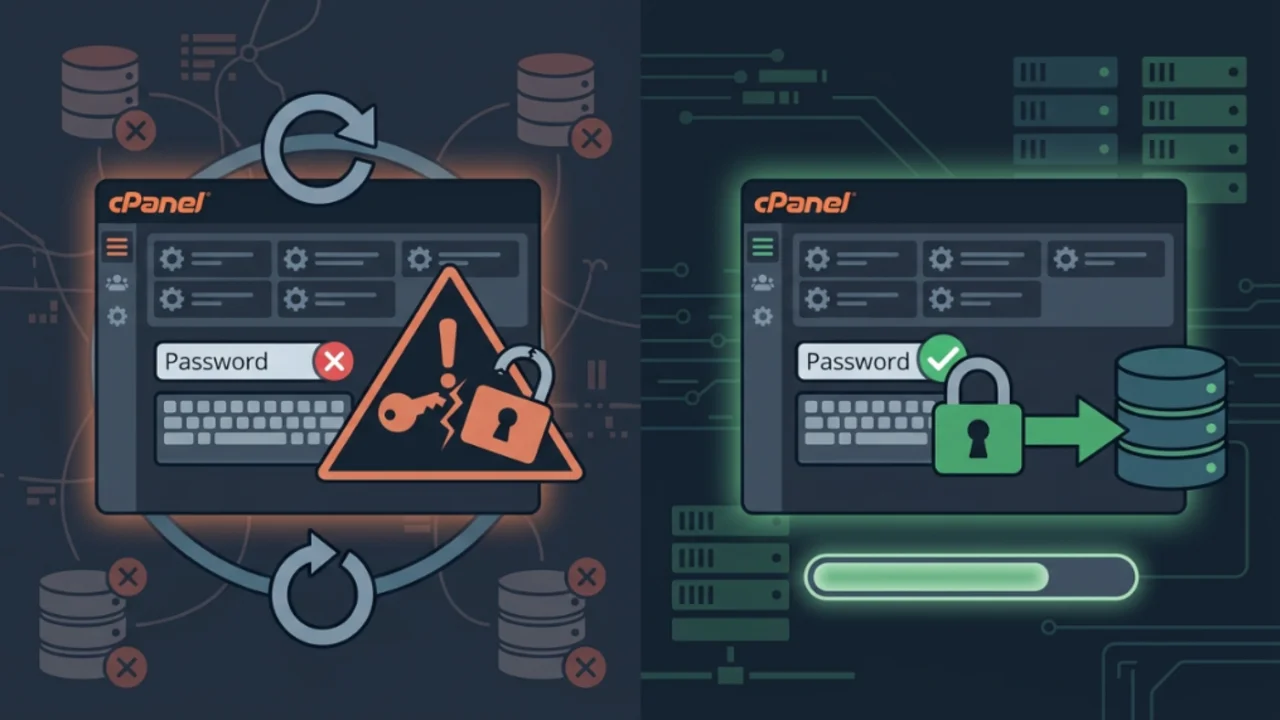
This confirmed the root cause: cPanel's chpass script updated the Linux system user password (PAM/shadow), but silently failed to update the matching row inside MariaDB's mysql.user table. The control panel assumed the sync succeeded, while the database still had the old credentials.
3. Database and User Mapping via dbmaptool and JSON Metadata#
Anyone managing accounts and servers on cPanel knows that the web interface can sometimes drop database listings or lose user associations. This discrepancy often surfaces after manual migrations, incomplete backup restores, or subtle desynchronization between MariaDB and cPanel's metadata layer.
I recently encountered this on a large account (empresaweb) hosting over 150 active databases. Two specific databases (empresaweb_turismo and empresaweb_basilica) vanished from the cPanel interface, and their associated database users lost permissions, breaking database connectivity for the hosted applications.
Here is why cPanel's built-in repair utility failed in this scenario, and how to resolve the issue directly inside the JSON metadata file using command line stream edits without risking the other 150 healthy databases.
The first response when databases disappear from cPanel is using the native database mapping utility (dbmaptool), provided by cPanel's internal tools.
I connected to the server via SSH as root and attempted to re-associate the database and user with the account:
[root@servidor ~]# /usr/local/cpanel/bin/dbmaptool empresaweb --type mysql --dbs empresaweb_turismo --dbusers empresaweb_turismoThe command returned this immediate response:
empresaweb_turismo is already owned by empresawebdbmaptool only verified root account ownership. Because cPanel already considered the database owned by the main account, it aborted execution without parsing secondary flags like --dbusers. The internal link between the database user and the SQL schema remained missing and invisible in the client dashboard.
Internal structure of cPanel database JSON files#
cPanel does not query MariaDB directly every time a user loads the database interface. Instead, it maintains an inventory of databases, servers, and privileges per account inside structured JSON files located in /var/cpanel/databases/.
Inspecting the account's file:
cat /var/cpanel/databases/empresaweb.jsonThe content exposed the exact structural breakdown (simplified to focus on the affected databases):
{
  "MYSQL": {
    "owner": "empresaweb",
    "server": "198.51.100.42",
    "noprefix": {},
    "dbs": {
      "empresaweb_turismo": "198.51.100.42",
      "empresaweb_basilica": "198.51.100.42"
    },
    "dbusers": {
      "empresaweb_turismo": {
        "server": "198.51.100.42",
        "dbs": {}
      },
      "empresaweb_basilic": {
        "server": "198.51.100.42",
        "dbs": {
          "empresaweb_basilica": "198.51.100.42"
        }
      }
    }
  },
  "version": 1
}
Two distinct issues were visible in the data:
- Empty database mapping on the tourism user: The database existed in the top-level
"dbs"dictionary, but inside"dbusers" -> "empresaweb_turismo", the"dbs": {}object was completely empty. cPanel knew the user existed, but had no record of granted access to the database. - Truncated username from legacy length limits: The physical database in MySQL was named
empresaweb_basilica, but the database user created in cPanel had been truncated toempresaweb_basilic(the classic 16-character limit in earlier MySQL and cPanel versions). The internal privilege mapping required exact alignment to render in the privileged users column.
4. Surgical JSON Corrections with sed for High-Density Accounts#
Opening a JSON file containing more than 150 databases in an interactive editor (like nano or vim) on a production server introduces risk. A single misplaced bracket or comma corrupts the entire JSON syntax and breaks database management across all sites in that account.
To make safe, pinpoint modifications, I used sed directly against the file.
First, I created a backup:
cp /var/cpanel/databases/empresaweb.json /var/cpanel/databases/empresaweb.json.bakNext, I injected the database mapping into the user's "dbs" block:
sed -i 's/"empresaweb_turismo":{"server":"198.51.100.42","dbs":{}}/"empresaweb_turismo":{"server":"198.51.100.42","dbs":{"empresaweb_turismo":"198.51.100.42"}}/g' /var/cpanel/databases/empresaweb.jsonFor the database with the truncated username, I ensured the mapping pointed cleanly to the full database name:
sed -i 's/"empresaweb_basilic":{"server":"198.51.100.42","dbs":{[^}]*}}/"empresaweb_basilic":{"server":"198.51.100.42","dbs":{"empresaweb_basilica":"198.51.100.42"}}/g' /var/cpanel/databases/empresaweb.jsonI verified that the JSON file retained valid syntax:
python3 -m json.tool /var/cpanel/databases/empresaweb.json > /dev/null
echo $?
An exit code of 0 confirmed the structure was intact and readable by cPanel daemons.
5. Direct Intervention in MariaDB Privilege Tables#
With the issue isolated, I logged into MariaDB directly as root to examine the user records:
[root@servidor ~]# mysqlInside the MariaDB shell, I queried the mysql.user table:
MariaDB [(none)]> SELECT User, Host, plugin FROM mysql.user WHERE User='usuario';
+---------+----------------------------+-----------------------+
| User    | Host                       | plugin                |
+---------+----------------------------+-----------------------+
| usuario | server.hosting.com         | mysql_native_password |
| usuario | localhost                  | mysql_native_password |
| usuario | 198.51.100.42              | mysql_native_password |
+---------+----------------------------+-----------------------+
3 rows in set (0.002 sec)
The output showed three host records for usuario: localhost, the public server IP, and the server FQDN (server.hosting.com). All three used the standard mysql_native_password authentication plugin.
The authentication mechanism was fine; the issue was strictly the password hash for local connections. Because phpMyAdmin communicates over the local socket on localhost, I applied the password change directly to that entry:
MariaDB [(none)]> SET PASSWORD FOR 'usuario'@'localhost' = PASSWORD('SenhaSegura2026!');
Query OK, 0 rows affected (0.001 sec)

MariaDB [(none)]> GRANT ALL PRIVILEGES ON `usuario\_%`.* TO 'usuario'@'localhost' WITH GRANT OPTION;
Query OK, 0 rows affected (0.005 sec)

MariaDB [(none)]> FLUSH PRIVILEGES;
Query OK, 0 rows affected (0.072 sec)

MariaDB [(none)]> EXIT;
If you attempt to run SET PASSWORD against the FQDN and see ERROR 1133 (28000): Can't find any matching row in the user table, this does not break the resolution. Copying host strings can introduce invisible characters. For phpMyAdmin in cPanel, the decisive record is usuario@localhost.
6. Cache Invalidation, phpMyAdmin Sessions, and Final Validation Checklist#
After updating the password and flushing privileges, I returned to the Linux shell to verify database access:
[root@servidor ~]# mysql -u usuario -p'SenhaSegura2026!' -e "SHOW DATABASES;"
+--------------------+
| Database           |
+--------------------+
| information_schema |
| usuario_dados      |
| usuario_wp         |
+--------------------+
All databases belonging to the user were listed without error.
With the database fixed, one common pitfall remains: browser session caching. cPanel's Single Sign-On stores temporary session tokens in cookies. If you simply refresh an existing phpMyAdmin tab that previously failed, the browser will resend the stale token.
To ensure a clean session:
- Close any existing phpMyAdmin browser tabs.
- Open an incognito or private browsing window (or clear site cookies).
- Log into cPanel with the account username and updated password.
- Click the phpMyAdmin icon.
cPanel generates a fresh SSO token, connects to MariaDB via localhost, and opens the phpMyAdmin interface without errors.
Cache Invalidation and Metadata Rebuild#
Updating the .json file on disk persists the records, but cPanel caches user metadata in memory to speed up interface rendering. Failing to clear this cache leaves stale tables in the browser or risks overwriting manual edits during the user's next interface action.
To force an immediate rebuild of account metadata, I executed the native script with --force:
/usr/local/cpanel/scripts/updateuserdatacache --force empresawebThis utility reparses /var/cpanel/databases/, updates internal indices, and refreshes the cPanel web interface display.
Web Interface Validation and Safety Tips for Large Accounts#
Immediately after running updateuserdatacache, I checked cPanel under MySQL Databases:
empresaweb_turismowas once again listed under active databases.empresaweb_basilicarestored its visual mapping.- The Privileged Users column correctly displayed the associated users for both databases, allowing normal permission and password management from the dashboard.
When managing accounts with dozens or hundreds of databases, making surgical CLI edits with tools like sed provides a safe and predictable way to repair metadata desynchronization without relying on error-prone interface workflows.
Was this article helpful?
Leave a quick reaction to help prioritize future technical guides:
See also

This post is licensed under CC BY-NC.
Comments
Join the discussion below.
0 comments