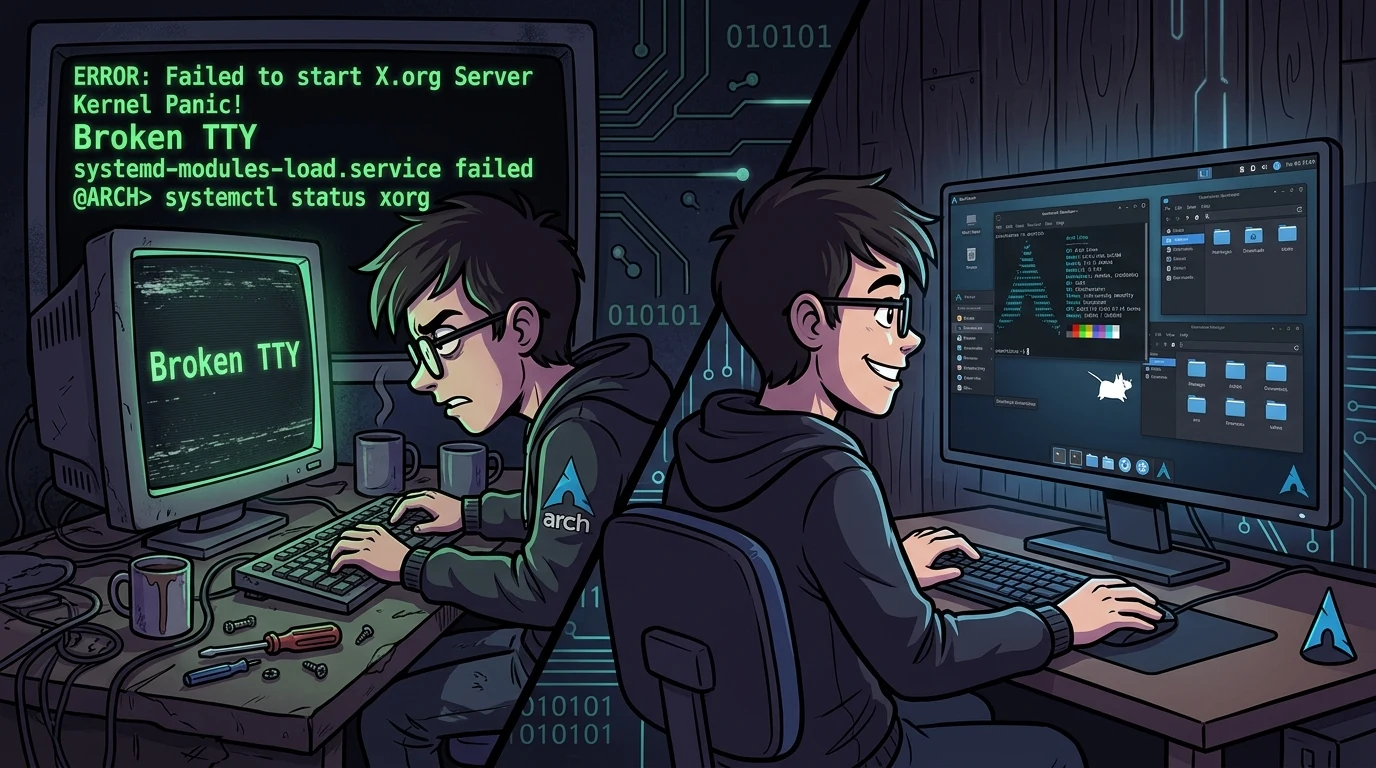
From broken TTYs to a functional XFCE4 desktop on Arch Linux: root cause analysis#
Installing Arch Linux from scratch on a virtual machine or bare metal rarely follows an entirely seamless path. When documentation does not immediately explain unexpected behavior, the most effective response is inspecting system calls, auditing package paths, and understanding how processes communicate across kernel interfaces.
I recently went through this setup while preparing an Arch Linux environment inside VirtualBox. What began as a simple keyboard mapping failure in the virtual terminal (TTY) evolved into D-Bus bus issues and missing panels inside XFCE4.
Below is the step-by-step breakdown of each issue and the commands used to bring the desktop into a fully working state.
The loadkeys br-abnt2 mystery and the ENOENT error#
Right after the initial boot into the virtual console, I attempted to load the standard Brazilian Portuguese keymap:
loadkeys br-abnt2
# Error received: unable to open file no such file or directory
Reinstalling the package with pacman -S kbd did not resolve the error.
Internal behavior of the kbd package#
The "unable to open file" message is a high-level wrapper around the ENOENT error code returned by the kernel during openat() or stat() syscalls.
Looking at the kbd source code (specifically in src/libkeymap/findfile.c), the utility scans compiled search paths while trying common extensions like .map, .map.gz, or .kmap. On Arch Linux, the lookup routine failed to resolve the short name "br-abnt2" directly to the physical compressed file at /usr/share/kbd/keymaps/i386/qwerty/br-abnt2.map.gz.
Because the file open failed, execution halted before invoking ioctl(KDSKBENT), which is the control call responsible for uploading the translation table into the kernel's virtual console driver.
Tracing path lookups with strace#
To determine where the binary was searching for keymaps, I ran strace filtered to filesystem calls:
strace -e trace=open,openat,stat loadkeys br-abnt2 2>&1 | grep keymapsThe output showed attempts against paths that did not match the installed layout. I also inspected the compiled path strings embedded in the executable:
strings $(which loadkeys) | grep /share/keymapsAdditionally, keymap files frequently include other partial definitions using C-like syntax, such as include "windowkeys". If a referenced include is missing, the decompression parser fails with ENOENT, giving the impression that the root file itself is missing. I verified the contents directly using zless:
zless /usr/share/kbd/keymaps/i386/qwerty/br-abnt2.map.gzWorkaround and systemd persistence#
To bypass the short-name resolution issue, I provided the full relative path within the keymap tree:
loadkeys i386/qwerty/br-abnt2
# Or using the absolute path:
loadkeys /usr/share/kbd/keymaps/i386/qwerty/br-abnt2.map.gz
To ensure this configuration persists across reboots, I set the systemd configuration file at /etc/vconsole.conf:
KEYMAP=br-abnt2
FONT=Lat2-Terminus16
To apply these settings immediately without rebooting:
/usr/lib/systemd/systemd-vconsole-setupService status can be reviewed using localectl status and journalctl -u systemd-vconsole-setup.
The X11 graphics stack and virtual machine drivers#
With the console layout operational, I installed the Xorg display server, XFCE4, and the LightDM display manager:
# Install core graphical packages
pacman -S xorg-server xfce4 xfce4-goodies

# Install display manager
pacman -S lightdm lightdm-gtk-greeter
systemctl enable lightdm
Because the machine ran inside VirtualBox, installing guest additions was necessary to enable DRM drivers and seamless display resizing:
pacman -S virtualbox-guest-utils
systemctl enable --now vboxservice
Configuring keyboards in Xorg#
The loadkeys tool applies only to virtual consoles (/dev/ttyX). The Xorg server handles keyboard inputs through the libinput driver.
To ensure ABNT2 settings remain persistent within the graphical environment, I created /etc/X11/xorg.conf.d/00-keyboard.conf:
Section "InputClass"
        Identifier "system-keyboard"
        MatchIsKeyboard "on"
        Option "XkbLayout" "br"
        Option "XkbVariant" "abnt2"
EndSection
Launching sessions with D-Bus#
If you start your desktop session directly from the console without a display manager (using startx), your ~/.xinitrc must launch the D-Bus session bus:
pacman -S xorg-xinit
cp /etc/X11/xinit/xinitrc ~/.xinitrc
echo "exec dbus-launch --exit-with-session startxfce4" >> ~/.xinitrc
XFCE4 relies on D-Bus IPC for communication between the window manager (xfwm4), the desktop manager, and the panel. Without a running session bus, panel applets and system notifications fail silently.
Recovering missing XFCE4 desktop panels#
Upon logging into the desktop environment, the screen presented an empty workspace: wallpaper and desktop icons appeared, but no taskbar or application menu was visible.
Why the panel failed to load#
The session manager (xfce4-session) launches xfce4-panel during startup. On first execution, the panel is expected to display a dialog asking the user to choose between a default or an empty layout.
When this dialog fails to appear, the most common causes include:
- D-Bus socket timeouts: IPC failures during session setup.
- Permission conflicts: if the graphical environment was previously launched under root,
~/.config/xfce4may have root-owned files that regular users cannot modify. - Stale configuration daemons: earlier instances of
xfconfdholding incomplete locks.
Rebuilding the panel configuration#
To verify process states from the terminal:
ps aux | grep xfcexfdesktop was running, but xfce4-panel was absent.
To reset the panel configuration and force a clean initialization:
# Target the active display
export DISPLAY=:0

# Stop any lingering processes
xfce4-panel --quit
pkill xfconfd

# Clear corrupted configuration directories
rm -rf ~/.config/xfce4/panel

# Start the panel bypassing redundant checks
xfce4-panel --disable-wm-check &
Running these commands brought up the first-run prompt, generating the default panel layout cleanly.
To complete the desktop with a modern searchable application launcher, I installed the Whisker Menu plugin:
pacman -S xfce4-whiskermenu-plugin xfce4-appfinder xfce4-goodiesAfter installation, I added the launcher by right-clicking the panel and selecting Panel -> Add New Items -> Whisker Menu.
From low-level debugging to a stable desktop: practical lessons#
Building an Arch Linux environment from the ground up offers clear insight into how system components interface with one another. When fundamental tools like loadkeys produce unexpected errors, the fastest way forward is tracing file lookups with strace rather than trying random package reinstalls.
Similarly, graphical interfaces that launch without core panels usually point to profile permission mismatches or missing IPC buses like D-Bus. Understanding these connection points between the kernel, X11, and desktop session managers makes Linux troubleshooting reliable and repeatable.
Was this article helpful?
Leave a quick reaction to help prioritize future technical guides:
See also




This post is licensed under CC BY-NC.
Comments
Join the discussion below.
0 comments