
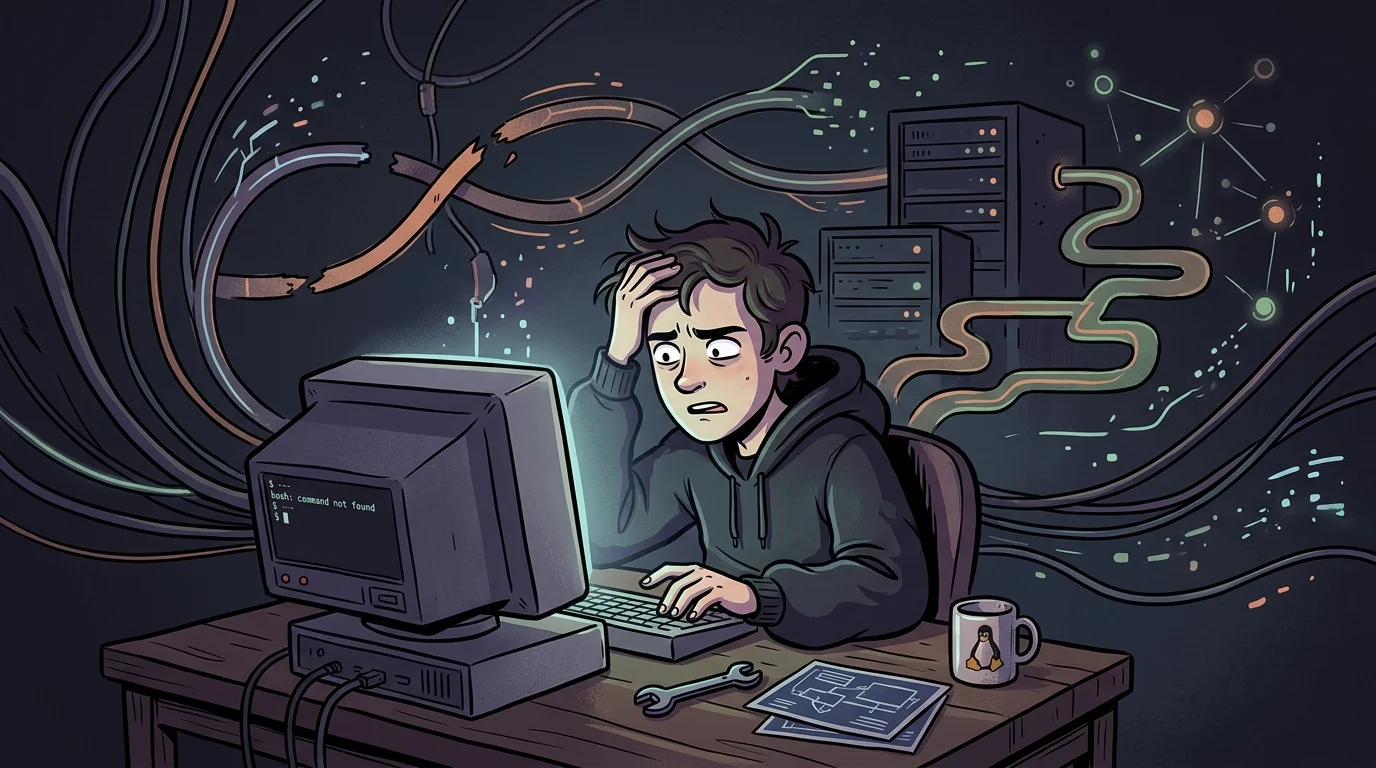
Anyone using XFCE4 on Linux has encountered this classic nuisance: the panel freezes, system tray icons disappear, or windows suddenly lose their title bars and close buttons.
The instinctive reaction for many users is to reboot the machine or log out of the session. The downside is obvious: it interrupts your entire flow, closes browser tabs, aborts background downloads, and shuts down editors with active unsaved work.
Because XFCE is modular, you can restart individual frozen components on the fly directly from the terminal without dropping your active user session.
1. The quickest fix: reloading the panel and window manager#
In the vast majority of minor desktop glitches on XFCE4, the issue lives inside one of two core processes:
xfwm4: the window manager (controls title bars, window borders, focus, and resizing).xfce4-panel: the taskbar and panel (handles launchers, clock, system tray, and applets).
To reload both without closing any of your active software, open a terminal (or press Alt + F2 for the quick command runner) and run:
xfwm4 --replace &
xfce4-panel --restart &
What these parameters do:#
--replacetellsxfwm4to take over window management by replacing whichever instance was previously running or hung. The trailing&runs it in the background to free up the terminal.--restartis a built-in parameter of the XFCE panel that cleanly reloads the taskbar and all active plugins without resetting your layout.
2. The direct approach: killing unresponsive processes#
If the panel or window manager has frozen hard enough that it ignores standard reload signals, a clean replacement might hang.
In that scenario, the most effective approach is killing the stuck processes and launching clean instances immediately in sequence:
killall xfce4-panel xfwm4 && ( xfce4-panel & xfwm4 & )This terminates any unresponsive process and instantly restarts both components, restoring window frames and the taskbar in under two seconds while keeping all your running apps open.
3. Last resort: restarting the display manager#
If the entire graphical session has locked up and cannot process window shortcuts, but you can still access a virtual TTY console (Ctrl + Alt + F2 through F6) or connect over local SSH, restarting the display manager is the final recovery step before a hard power reset.
Note: This action will close your graphical session and any running applications, returning you to the login greeter screen.
For systems using LightDM (standard on most XFCE distributions):
sudo systemctl restart lightdmFor systems using GDM or SDDM:
sudo systemctl restart gdm || sudo systemctl restart sddmConclusion: quick reference guide#
| Desktop issue | Recommended command | Keeps apps open? |
|---|---|---|
| Panel froze or window borders disappeared | xfwm4 --replace & xfce4-panel --restart & | Yes |
| XFCE components unresponsive to standard reload | killall xfce4-panel xfwm4 && ( xfce4-panel & xfwm4 & ) | Yes |
| Total graphical session lockup (via TTY console) | sudo systemctl restart lightdm | No (logs out to greeter) |
Keeping those first two commands handy or mapped to a custom keybinding saves plenty of time and prevents unnecessary reboots during daily desktop use.
Was this article helpful?
Leave a quick reaction to help prioritize future technical guides:
See also


This post is licensed under CC BY-NC.
Comments
Join the discussion below.
0 comments