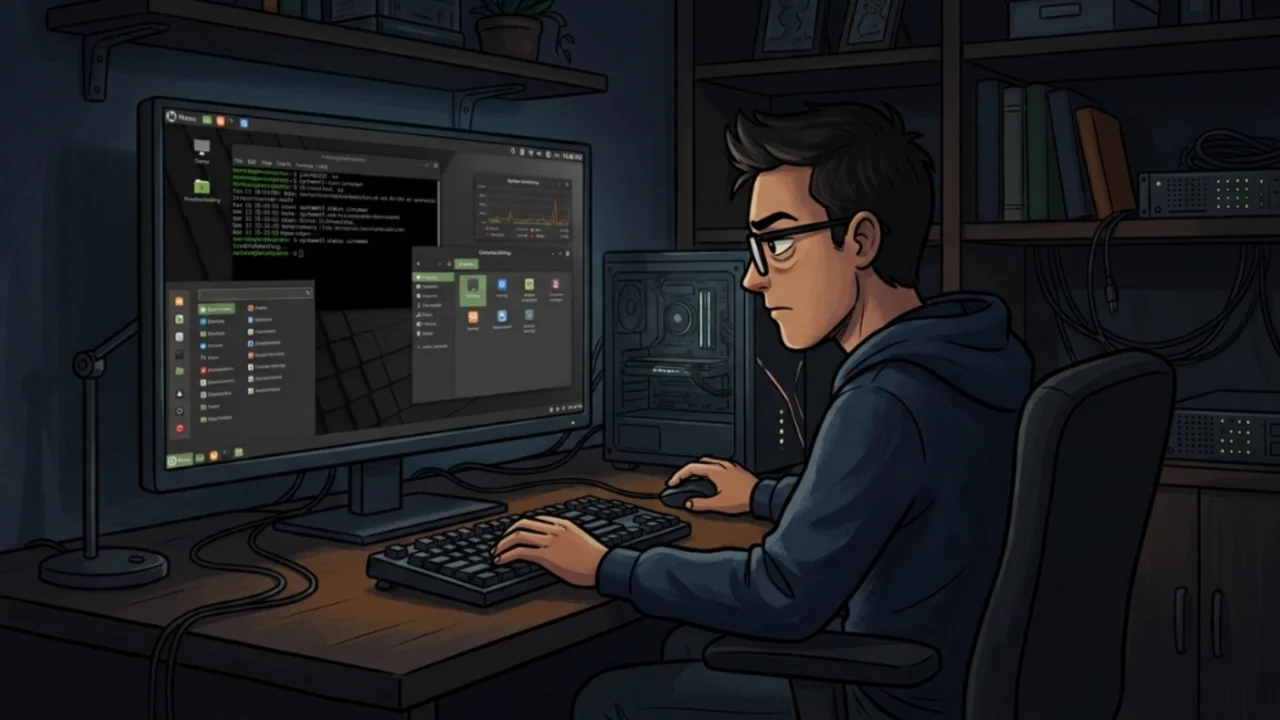
Anyone using Linux daily with the Cinnamon desktop environment (standard on Linux Mint and widely adopted across multiple distributions) knows that graphical interfaces can occasionally misbehave. Whether due to a memory leak in a third-party applet, GPU acceleration hiccups, or temporary resource exhaustion, the desktop may stop responding.
The most intuitive and frustrating reaction when facing a frozen screen is forcing a hard reboot by holding down the computer's physical power button. Beyond risking filesystem journal corruption (especially on ext4 or Btrfs partitions before write caches flush), an abrupt shutdown kills background tasks, wipes unsaved work, and cancels active downloads.
There are far more reliable ways to regain control. Below are three operational tiers of intervention, ranging from the gentlest method (preserving every open window) to a structured graphical session reset.
Tier 1: The alt + F2 soft restart (without closing any application)#
If panels disappear, the taskbar stops updating, or window title bars lose focus, yet your keyboard and mouse pointer still move, Cinnamon's main event loop can be reloaded in place.
- Press the key combination:
Alt + F2- A floating command prompt will pop up in the center of the screen. Type:
r- Press
Enter.
What happens under the hood:#
When this command runs, Cinnamon dispatches an internal D-Bus call directly to the window manager and compositor (Muffin).
The active process executes a soft restart:
- It purges its internal memory caches.
- It reloads dynamic shared libraries and reapplies configuration files and theme assets.
- It leaves the underlying X11 (Xorg) display server untouched.
Because socket connections between client applications and the X display server remain intact, open applications retain their process IDs (PIDs). Your browsers with dozens of tabs, ongoing terminal build scripts, and text editors stay open, and the graphical shell redraws within two seconds.
Tier 2: Process replacement via terminal (cinnamon --replace)#
When a freeze is more severe and the desktop stops capturing global keybindings (meaning Alt + F2 fails to summon the prompt), you can inject a fresh manager process through an open terminal window.
Press Ctrl + Alt + T (or switch to an already running terminal) and execute:
cinnamon --replace &To completely detach the process so you can safely close the terminal afterward, run:
nohup cinnamon --replace >/dev/null 2>&1 &What happens under the hood:#
- Taking over the display: The
--replaceflag tells the new Cinnamon executable to acquire ownership of the active X11 display. Upon detecting that an older, unresponsive process holds the display socket, the incoming binary dispatches a termination signal instructing the zombie process to relinquish window frame bindings. - Why the trailing
&is vital: The&operator forks the command into the background. If you executecinnamon --replacewithout the&, the entire graphical desktop becomes attached as a child process of that specific terminal shell. The moment you close the terminal window, bash sends aSIGHUP(Signal Hang Up) to all child processes, instantly killing the desktop session you just restored. Using&ornohupensures the session remains alive independently.
Tier 3: Session recycling via TTY and systemd (when the mouse is frozen)#
When experiencing a complete system freeze (the mouse cursor will not move, frames stop rendering, and all graphical shortcuts fail), the underlying display server or GPU driver is locked up.
Even in this extreme state, a hard reboot is rarely necessary. The Linux kernel typically keeps virtual console text sessions fully operational in the background:
- Drop out of the graphical server into a virtual TTY by pressing:
Ctrl + Alt + F3(If F3 does not respond immediately, try Ctrl + Alt + F4 or F5).
- A full-screen text console will appear. Type your username, press
Enter, and provide your password. - Restart the display manager with administrative privileges:
sudo systemctl restart lightdm(Note: Linux Mint uses LightDM by default. If you run Cinnamon on Fedora, Arch, or Debian with GNOME components, your display manager service might be gdm, gdm3, or sddm).
What happens under the hood:#
This tier initiates a controlled restart via systemd:
- The LightDM daemon and the Xorg server attached to your previous session are gracefully shut down.
- systemd issues a
SIGTERM(followed bySIGKILLif worker processes fail to exit before the timeout) to the session's cgroup. - File descriptors are closed safely by the kernel. Unsaved application state is lost, but filesystem integrity is fully protected against write corruption.
- LightDM launches a clean X server on TTY 7 and presents the login greeter.
Restarting the display manager through systemd prevents hard power cuts, protects hardware components from electrical stress, and ensures filesystem journals remain clean.
Auditing the root cause after restoring the desktop#
Once your desktop is responsive again, identifying what triggered the freeze helps prevent recurring lockups:
1. Inspect Cinnamon's looking glass#
Cinnamon includes an integrated JavaScript debugger. Press Alt + F2, type lg, and press Enter.
- Check the Errors tab to identify uncaught JavaScript exceptions from malfunctioning applets or desklets.
- Review the Extensions tab to isolate and disable recently added extensions that may leak memory.
2. Check recent session logs#
In your terminal, query recent compositor entries via journalctl:
journalctl --user -b -u "cinnamon*" --no-pager | tail -n 40Or inspect X11 session logs:
grep -iE "error|warn|failed|segfault" ~/.xsession-errors | tail -n 30Best practices to keep Cinnamon lightweight and responsive#
To prevent desktop instability during heavy workloads:
- Prune unvetted third-party applets: Many custom weather monitors, currency tickers, and hardware graphs poll on short intervals without properly releasing memory references, steadily inflating Cinnamon's RAM footprint over weeks of uptime.
- Perform occasional soft restarts: If your machine remains powered on for weeks at a time, running
Alt+F2->revery few days flushes internal compositor caches instantly without interrupting running tasks. - Monitor the shell's memory baseline: Commands like
ps -eo pid,pmem,comm --sort=-pmem | grep cinnamonallow you to verify that Cinnamon stays within its healthy working memory bracket (typically between 200 MB and 600 MB).
Mastering these three intervention tiers ensures you never have to pull the power plug when a graphical glitch freezes your screen.
Was this article helpful?
Leave a quick reaction to help prioritize future technical guides:
See also


This post is licensed under CC BY-NC.
Comments
Join the discussion below.
0 comments