
What exactly broke: the failure sequence#
Anyone running a laptop with hybrid graphics on Linux knows the constant temptation to squeeze out every extra minute of battery life. Recently, I decided to tweak the power consumption on my laptop (an Asus F16 with an Intel processor and dedicated Nvidia RTX 5050 running CachyOS).
In my rush to maximize battery runtime off the wall charger, I applied a set of AI-generated tweaks intended to forcefully disable the dedicated GPU and route everything through the integrated graphics. The result was instantaneous: I rebooted the machine and was greeted by a completely black screen right when the desktop login was supposed to appear.
Here is what went wrong inside the graphics pipeline, how I diagnosed the issue without reinstalling anything, and the exact terminal steps I took to get the desktop back up.
1. The symptom: what happened during boot#
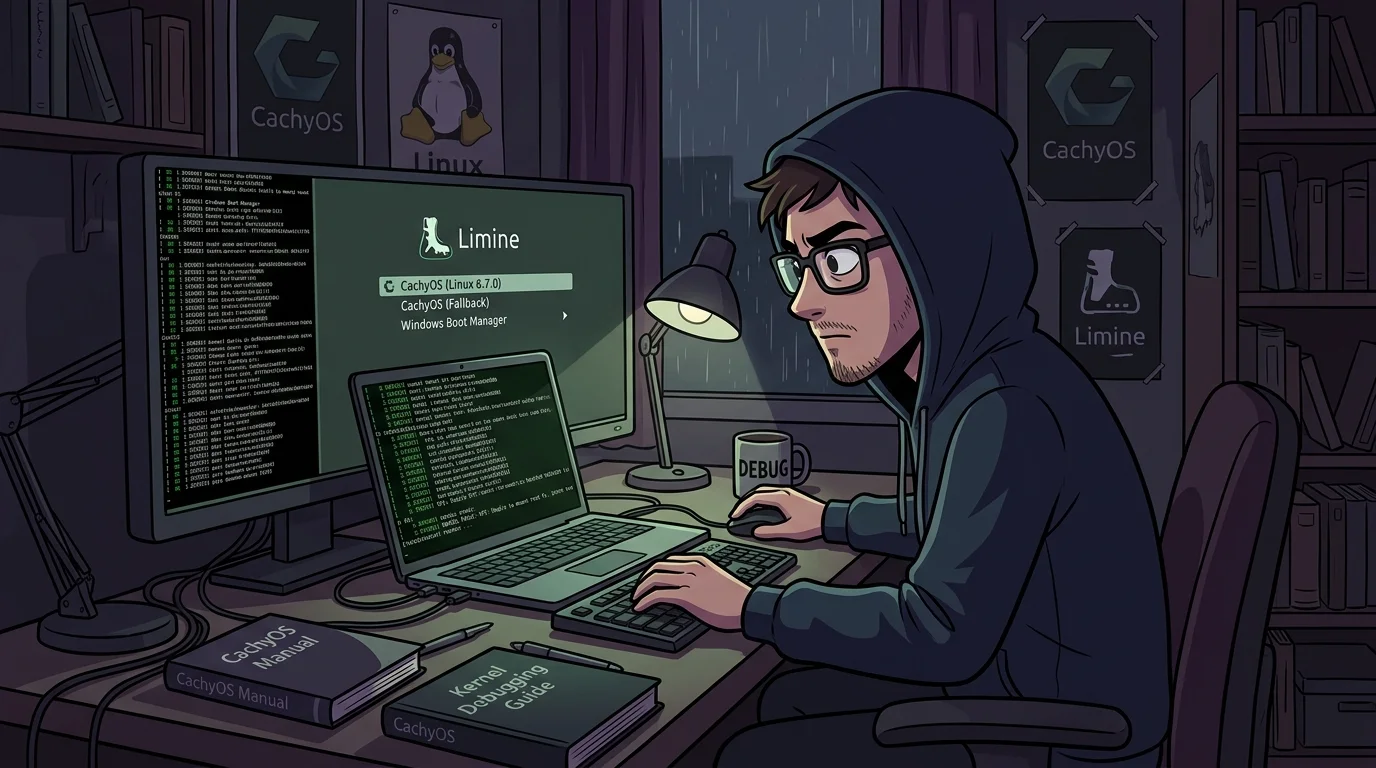
After applying the configuration changes and rebooting, the laptop displayed a very specific behavior:
- The boot menu (GRUB or Systemd-boot) loaded normally.
- The kernel initialized and the CachyOS splash screen showed up.
- At the exact moment the login manager was supposed to take over, the display went entirely black.
- When pressing the power button to turn it off, the screen woke up for a couple of seconds, displaying the CachyOS shutdown animation before powering down.
That brief flicker of life during shutdown was the key clue. It proved that the kernel and core operating system had booted with zero panics. The issue lived strictly within the Display Manager (LightDM) and the display server (Xorg), which were attempting to push visual buffers to an unmapped or disconnected PCI bus.
2. Root cause: the conflict between lightdm, xorg, and hybrid graphics#
Modern laptops with hybrid graphics rely on PRIME Render Offload or automatic hardware multiplexing.
When you create manual configuration snippets in /etc/X11/xorg.conf.d/ or drop static display scripts into lightdm.conf without exact PCI bus IDs and connector mappings, the display server gets confused. It attempts to render frames onto a phantom display output, leaving the physical laptop panel unlit.
When shutting down, systemd stops LightDM and hands display control back to the kernel's DRM/KMS framebuffer, which is why video output returned during shutdown.
3. Accessing the recovery terminal#
To fix this without needing a live USB rescue disk, I used two direct keyboard shortcuts:
Option a: quick access through a virtual TTY#
Because the operating system was still running in the background:
- Let the system reach the black screen state.
- Press
Ctrl+Alt+F3(orF4,F5,F6). - The text-based login prompt appeared. I logged in with my regular username and password.
Option b: booting into text mode (runlevel 3) from the bootloader#
If Xorg locks the console and prevents switching to a TTY:
- In the bootloader selection menu, highlight the CachyOS entry and press
eto edit boot parameters. - Find the line starting with
linux /vmlinuz-.... - Append
3at the end of the line (preceded by a space). - Press
F10(orCtrl+X) to boot directly into text mode without starting the graphical session.
4. Cleanup and restoration commands#
Once logged into the terminal with sudo privileges, the repair was straightforward: clean up the bad static files and reset LightDM to its defaults:
1. Remove broken xorg configuration files:#
# Remove manually created display configuration files
sudo rm -f /etc/X11/xorg.conf.d/90-nvidia.conf
sudo rm -f /etc/X11/xorg.conf.d/10-monitors.conf
2. Verify and restore lightdm to defaults:#
# Check modified files inside lightdm directory
ls -la /etc/lightdm/

# If the config file was corrupted or overwritten, reinstall clean packages:
sudo pacman -S lightdm lightdm-slick-greeter --overwrite "*"
3. Test the display manager service:#
# Restart LightDM to verify if the graphical interface comes back
sudo systemctl restart lightdm
The CachyOS login greeter popped right back onto the screen. With everything responsive, I ran sudo reboot to confirm that standard boots were back to normal.
The right way to save battery on asus laptops with hybrid graphics#
The biggest takeaway from this experience was realizing that manually editing Xorg and LightDM files is asking for trouble on recent hybrid hardware.
Today, there are dedicated tools designed to handle switching safely and automatically:
- supergfxctl / asusctl: Utilities built specifically for Asus laptops (ROG and TUF series). They handle GPU switching with a single clean command:
# Switch safely to integrated GPU mode for the next boot
supergfxctl -m Integrated

# Return to standard hybrid mode
supergfxctl -m Hybrid- PRIME Render Offload: In standard hybrid mode, the RTX 5050 drops into a deep sleep power state (D3cold), drawing virtually zero power. It only spins up when you explicitly launch a game or heavy app using
prime-run <command>. - power-profiles-daemon: To maximize battery life on the go, simply switch to the power-saver profile from your desktop panel or run
powerprofilesctl set power-saver.
After clearing out the manual overrides and letting supergfxctl manage the hardware properly, the laptop regained great battery runtime without risking a broken login screen on every reboot.
Was this article helpful?
Leave a quick reaction to help prioritize future technical guides:
See also

This post is licensed under CC BY-NC.
Comments
Join the discussion below.
0 comments