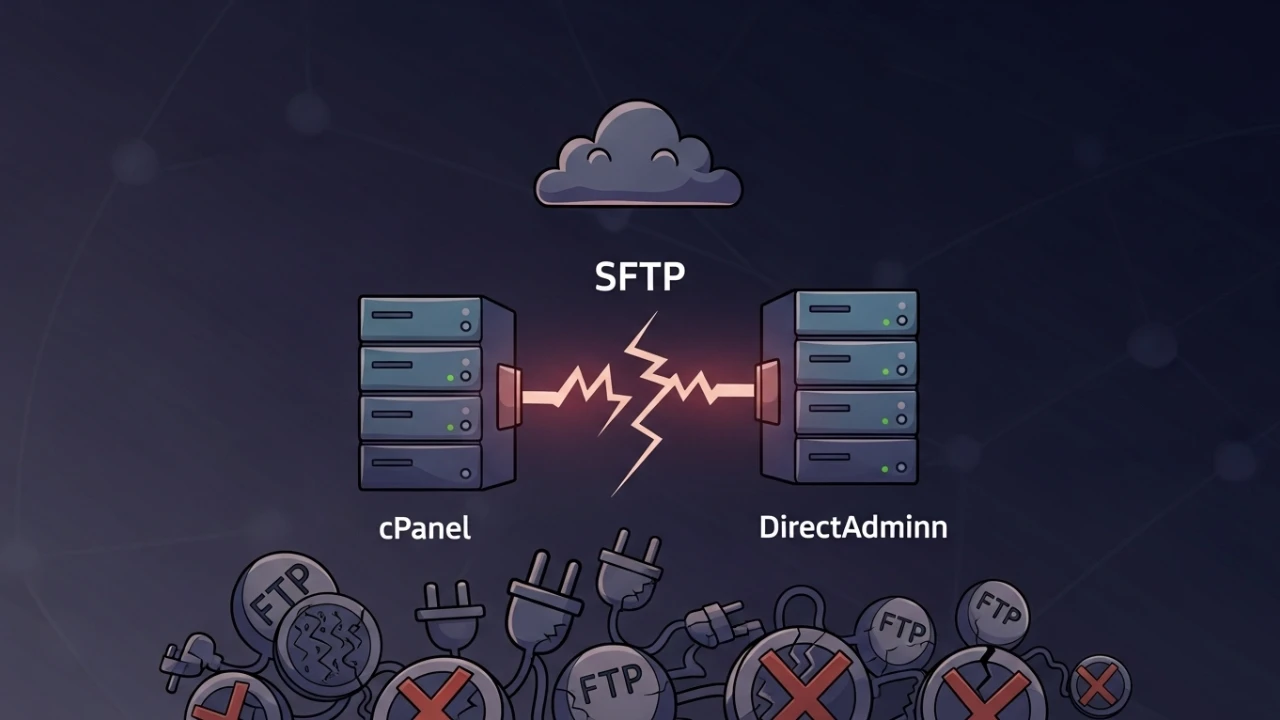
Debugging Pure-FTPd stuck waiting for welcome message on cPanel/OVH#
During a routine maintenance window on a cPanel VPS utilizing Pure-FTPd as the FTP daemon, I encountered a classic infrastructure issue: the FTP client (such as FileZilla) successfully established the initial TCP connection but remained stuck indefinitely at:
Status: Connection established, waiting for welcome message...In this scenario, the TCP socket is opened correctly (the SYN -> SYN/ACK -> ACK three-way handshake completes), but the protocol application banner (e.g., 220 Welcome to Pure-FTPd) never reaches the client. This article provides a layered, step-by-step diagnostic workflow covering service status, logs, passive ports, CSF, provider-edge firewalls, TLS/SSL, and local network verification.
1) Preventive configurations backup#
Before modifying any Pure-FTPd configuration files or CSF firewall settings, create a safety backup of local configurations:
# Back up local Pure-FTPd configuration mappings
cp /var/cpanel/conf/pureftpd/local /var/cpanel/conf/pureftpd/local.bak.$(date +%Y%m%d)

# Back up CSF firewall settings
cp /etc/csf/csf.conf /etc/csf/csf.conf.bak.$(date +%Y%m%d)

# OR create a compressed tar archive of all critical directories
tar czf /root/ftp-backup-$(date +%Y%m%d).tar.gz /var/cpanel/conf/pureftpd/ /etc/csf/csf.conf
2) Service status and log auditing#
Before analyzing the firewalls, verify that Pure-FTPd is running, listening on the expected ports, and responding locally:
# 1. Verify service status using systemd
systemctl status pure-ftpd

# 2. Get active Pure-FTPd process IDs (PIDs)
ps aux | grep pure-ftpd
pgrep -c pure-ftpd

# 3. Validate control port 21 binding on IPv4 and IPv6 sockets
ss -lntp | grep ":21"
ss -lntp6 | grep ":21"

# 4. Check SELinux status (common on Rocky/AlmaLinux/RHEL)
sestatus
If the service is active, test the response locally using the loopback interface to rule out external firewall blocks. Since the telnet utility is not installed by default on modern Linux distributions, use nc (netcat) or curl to inspect the application banner:
# Test direct local connection to the FTP banner using netcat (nc)
echo "QUIT" | nc -w 5 127.0.0.1 21

# Alternative connection test via curl
curl -v ftp://127.0.0.1/ --connect-timeout 5
(If the 220 Welcome to Pure-FTPd banner appears locally but fails externally, the bottleneck lies in the network, TLS, or intermediate firewalls. If it fails locally, the cause lies in the daemon configurations, local resources, or restrictive SELinux policies).
Inspect FTP and cPanel logs for connection issues and timeouts. On systemd-based distributions (such as Rocky 8+ or Ubuntu 20.04+), /var/log/messages may not be present; in these cases, query logs using journalctl:
# Query FTP daemon logs via systemd
journalctl -u pure-ftpd --since "1 hour ago"

# Read the last lines of the static log file (if syslog writing is active)
tail -100 /var/log/pure-ftpd.log
grep -i "error\|refused\|timeout" /var/log/pure-ftpd.log | tail -20

# Query cPanel log errors related to FTP
tail -100 /usr/local/cpanel/logs/error_log | grep -i ftp
3) Service conflicts and resource auditing#
It is essential to verify that no competing FTP daemons are attempting to bind to port 21, and that no residual configurations from other servers (like vsftpd or proftpd) are causing socket collisions:
# Check for other running FTP server processes
ps aux | grep -E "vsftpd|proftpd|pure-ftpd" | grep -v grep

# Check for configuration files of other FTP daemons
ls -la /etc/vsftpd* /etc/proftpd* 2>/dev/null
Banner delivery failures can also be triggered by low disk space or exhausted inodes, which prevent the server from writing temporary session files:
# Check free disk space on all partitions
df -h

# Check active disk inode usage limits
df -i

# Inspect specific disk usage in cPanel temporary and spool directories
df -h /var/cpanel
df -h /tmp
4) Passive ports and CSF firewall audits#
FTP in passive mode requires a dedicated port range for data transfer. In cPanel, configure this port range persistently:
# Create or edit cPanel's local configuration mapping file
nano /var/cpanel/conf/pureftpd/local
Add the configuration range directive:
PassivePortRange: 49152 65535Rebuild the active configuration and restart Pure-FTPd using cPanel utilities:
# Force configuration rebuild using local templates
/usr/local/cpanel/scripts/setupftpserver pure-ftpd --force

# Safely restart the FTP service
/usr/local/cpanel/scripts/restartsrv_pureftpd# Query the passive port range configured in cPanel
grep -i "PassivePortRange" /var/cpanel/conf/pureftpd/local
# Simulate a passive connection request and verify if "Entering Passive Mode" is returned
curl -v --ftp-pasv ftp://127.0.0.1/ --connect-timeout 5Configserver security & firewall (CSF) alignment:#
Ensure the passive port range and port 21 are whitelisted in both the incoming (TCP_IN) and outgoing (TCP_OUT) directives inside /etc/csf/csf.conf:
TCP_IN = "...,21,49152:65535"
TCP_OUT = "...,21,49152:65535"
Reload the CSF firewall rules and audit its active state (test using the public IP of your client machine, as CSF does not filter loopback connections by default):
# Reload CSF rules
csf -r

# Verify active CSF version
csf -v

# List the first active traffic rules
csf -l | head -20

# Check if your public IP is blocked or allowed in the firewall
csf -g $(curl -s ifconfig.me)

# Check if the test IP is blocked in the deny list
grep "21" /etc/csf/csf.deny | head -5
5) FTP tls/ssl audits#
If the server enforces FTPS, note that the initial 220 greeting banner is sent before any TLS negotiation begins: the client receives the plaintext greeting, sends the AUTH TLS command, and only then starts the cryptographic handshake. Therefore, expired certificates, broken certificate chains, or cipher suite mismatches do not block the banner from arriving — they fail immediately afterward during client-side verification. If the connection hangs before the 220 banner appears, the fault lies in preceding layers: daemon down, port blocked, firewall drops, SELinux denials, or resource exhaustion. Reserve this section for when the 220 banner appears but the session dies during TLS/STARTTLS negotiation (or on port 990 for implicit FTPS).
# Verify the active TLS security level required by the daemon
cat /etc/pure-ftpd/conf/TLS

# Audit the certificate path and PEM file permissions
ls -la /etc/ssl/private/pure-ftpd.pem

# Check certificate dates and validity
openssl x509 -in /etc/ssl/private/pure-ftpd.pem -noout -dates
Test the TLS handshake directly from the host terminal (piping the QUIT command to prevent the client from hanging waiting for interactive input after the handshake):
# Establish a secure connection and trigger STARTTLS negotiation non-interactively
echo "QUIT" | openssl s_client -connect 127.0.0.1:21 -starttls ftp -quiet
6) Network and external providers (OVH, AWS, etc.)#
For virtual instances hosted on cloud or VPS environments (such as OVH, AWS EC2, Azure), an external network firewall layer exists before the host Linux OS (Security Groups, ACLs, or Edge Firewalls).
Both the passive range (49152:65535) and the control port (21) must be allowed in the local CSF firewall and the provider's panel. Otherwise, packets will be dropped before reaching the server.
On OVH, the Network Firewall (accessible under the "IP" or "Network" tab in the OVH manager) acts as an active edge filter. If the passive port rules are not explicitly whitelisted there for your server's IP, the data packets will be dropped silently at the provider's edge, even if your local CSF is completely open.
Network interfaces and edge connectivity audit:#
# Check active network interfaces and bound IPs
ip addr show

# Check the local routing table
ip route show

# Verify that the detected public IP matches the provider's console IP
curl -s ifconfig.me

# Lookup the reverse DNS (rDNS) pointer record of the host's public IP
dig -x $(curl -s ifconfig.me) +short

# Ping external targets to test link latency
ping -c 3 $(curl -s ifconfig.me)
Testing with alternative FTP clients securely without credential exposure:#
# 1. Test connection using lftp securely via environment variable
LFTP_PASSWORD="${FTP_PASSWORD}" lftp -u "${FTP_USER}" ftp://$(curl -s ifconfig.me)

# 2. Test secure connection via curl using a temporary .netrc file (safe from process sniffers)
echo "machine $(curl -s ifconfig.me) login ${FTP_USER} password ${FTP_PASSWORD}" > ~/.netrc
chmod 600 ~/.netrc
curl -v --ftp-ssl --netrc ftp://$(curl -s ifconfig.me)/
rm -f ~/.netrc

# 3. Verify if port 21 is reachable externally using netcat (nc)
nc -zv $(curl -s ifconfig.me) 21
Checklist: debug FTP - banner stalls#
Use this troubleshooting checklist to diagnose and resolve FTP connection issues on cPanel environments.
1. Local triage#
- [ ] Create backups of configurations:
/var/cpanel/conf/pureftpd/localand/etc/csf/csf.conf - [ ] Check disk space and inode limits (
df -h/df -i) - [ ] Validate Pure-FTPd daemon status (
systemctl status/ss -lntp | grep :21) - [ ] Verify there are no competing FTP daemons (vsftpd/proftpd) active on port 21
- [ ] Test local banner response non-interactively:
echo "QUIT" | nc -w 5 127.0.0.1 21
2. Firewall & passive ports mapping#
- [ ] Verify the passive port range in Pure-FTPd (
PassivePortRange: 49152 65535) - [ ] Run setupftpserver rebuild and restart the cPanel FTP service
- [ ] Whitelist the passive range and port 21 in
csf.conf - [ ] Reload CSF rules (
csf -r) and verify there are no active blocks on the client IP (csf -g IP) - [ ] Verify that the passive range is open on the provider-side edge firewall (OVH Network Firewall, AWS SG, etc.)
3. Encryption channel verification#
- [ ] Check certificate PEM file dates and validity (
openssl x509) - [ ] Test the TLS handshake locally non-interactively:
echo "QUIT" | openssl s_client -connect 127.0.0.1:21 -starttls ftp -quiet - [ ] Test external connections using lftp (via
LFTP_PASSWORD) and curl (via.netrc) to validate ciphers and credentials securely withoutps auxleaks - [ ] Check local SELinux policy status (
sestatus//var/log/audit/audit.log)
Was this article helpful?
Leave a quick reaction to help prioritize future technical guides:
See also



This post is licensed under CC BY-NC.
Comments
Join the discussion below.
0 comments