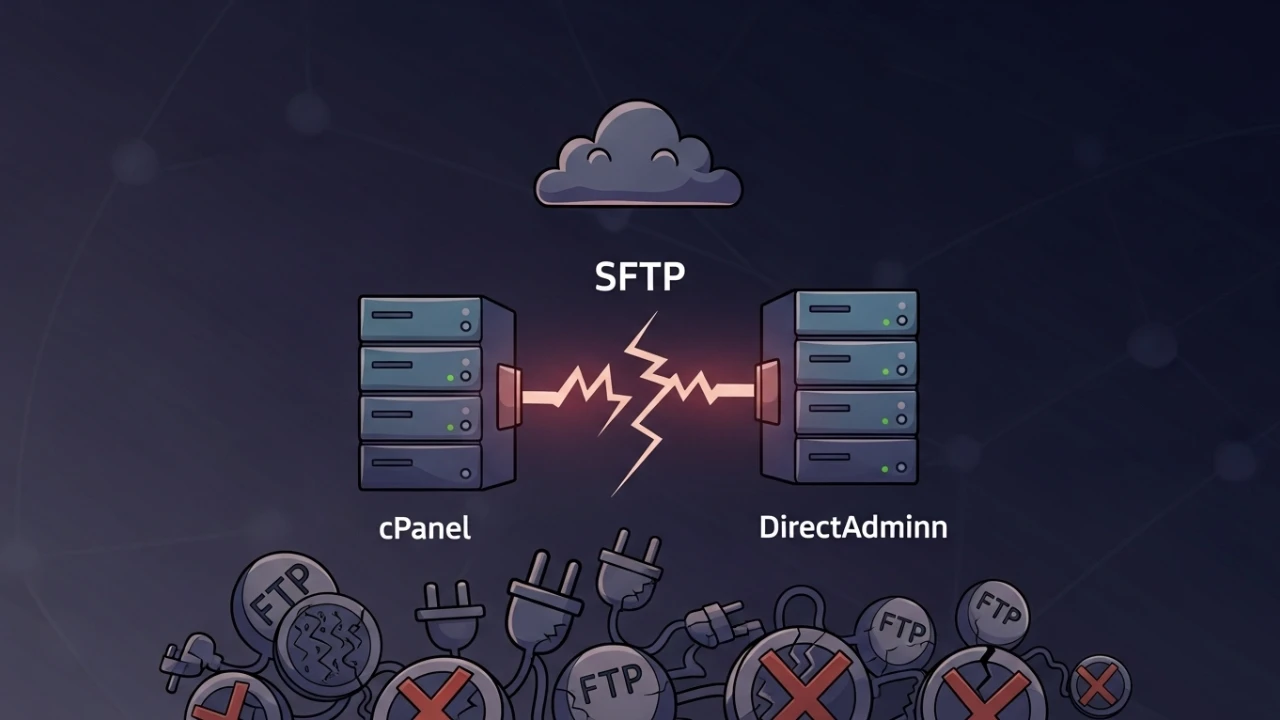
I recently encountered a common but frustrating challenge for those who manage cPanel servers via the CLI: I performed several file transfers via FTP, confirmed that the files successfully reached their destination, but the logs within the user's home directory simply did not reflect any recent activity.
The specific path that caused the confusion was:
/home/user/logsInside this directory, there were compressed files following the standard naming convention:
ftp.domain.com-ftp_log-Mar-2026.gzEven after uploading several megabytes of data via FTP, the size of these .gz files remained unchanged, and their modification dates appeared frozen in the past. To a casual observer, it might seem that Pure-FTPd had stopped logging or that cPanel's statistics processing system had crashed.
The core of this diagnosis was separating live logs from archives. A .gz file within /home/user/logs is not a real-time record of service activity. It is a historical package generated by periodic rotation and consolidation tasks. If you perform an upload now, you should not expect this archive to be updated instantly as if you were running a tail -f.
The scenario i encountered#
The user had multiple compressed log files, with names similar to the one mentioned above. The observed behavior pattern was:
- FTP transfers were marked as "Success" in FileZilla.
- Files correctly appeared in the target directory (e.g.,
public_html). - The size and timestamp of the
.gzfiles in/home/user/logsremained static. - Executing
runweblogsdid not yield any recent activity indicators.
In this type of case, I don't start by assuming an FTP service failure. First, I validate the transfer itself. If the file exists and the client reported success, the FTP daemon worked. The question then shifts to:
Where did cPanel record the raw event, and when will it compress that into the user's home archive?The runweblogs myth#
The first instinct for many cPanel administrators is to run:
/usr/local/cpanel/scripts/runweblogs <user>I executed this command because it is an official script and often resolves delayed statistics. However, there is a critical operational lesson here: runweblogs primarily processes statistics for visual web-based tools like Awstats and Webalizer. It reads existing log data and generates reports.
It is not the component responsible for the instantaneous writing of FTP events into the .gz archives within the user's home.
If the raw log hasn't been rotated yet, if cpanellogd hasn't consolidated the data, or if the activity isn't in the specific file the script expects, runweblogs might return a confusing message, such as claiming there has been no activity since the Unix epoch.
The classic message looks like this:
No activity since 1969This date doesn't mean the server traveled back in time. It typically indicates that the stats processor found no new, valid, or processable timestamps in its input set.
Raw logs vs. archives: the operational shift#
This was the turning point of the diagnosis. I began treating the .gz files as "dead" files from an operational perspective - they are archives representing the past, dependent on a maintenance task to be generated or refreshed.
The correct mental model is:
FTP service generates event -> System records in raw log -> cPanel processes/rotates -> Archive appears in /home/user/logsThe incorrect (and frustrating) expectation is:
FTP upload -> .gz archive changes immediatelyTo debug the "present," I stop looking at /home/user/logs/*.gz and move to raw system logs in /var/log, journald, and cPanel's temporary domlogs.
Auditing the service via journald#
On modern Linux distributions, especially when traditional files like /var/log/xferlog are absent, Pure-FTPd likely sends messages to syslog or journald.
The most direct command to follow the service in real-time is:
journalctl -u pure-ftpd -fUsing this, I can monitor connection attempts, logins, and uploads as they happen. The goal is to confirm:
- Did Pure-FTPd receive the connection?
- Was authentication successful?
- Did the
PUTcommand arrive? - Was the transfer completed without errors?
- Are there permission or session errors?
This removes a major variable. If journalctl shows the event, the FTP service is logging correctly. The problem is not "missing logs," but rather "unconsolidated logs."
Searching /var/log/messages#
In some environments, Pure-FTPd output is directed to the general system log. I search specifically for the name of the file I just transferred:
grep "file_name.txt" /var/log/messagesThis search is objective. I don't look for generic "FTP" strings first; I look for the actual artifact. If I uploaded file_name.txt, its presence in the logs is an undeniable evidence of activity.
When /var/log/xferlog is missing#
Older documentation often points to /var/log/xferlog. While this file is perfect for tracking FTP when it exists, many modern cPanel configurations do not generate it by default or have moved away from it.
If you don't find it, don't panic. Simply pivot to:
journalctl -u pure-ftpd -f
grep "file_name.txt" /var/log/messages
And additionally, check cPanel's temporary domlogs area.
Domlogs: the missing link#
cPanel maintains temporary logs before they are processed and compressed into the home directory. A key location I check is:
ls -la /var/log/apache2/domlogs/<user>/Despite the apache2 folder name, this path often centralizes logs per domain/user for various services used by the cPanel stats ecosystem. Finding activity here proves that the system has captured the event, it just haven't "packaged" it yet.
Forcing processing with cpanellogd#
When you need to force a processing pass, runweblogs isn't enough. You need cpanellogd, the daemon responsible for log rotation and processing across the server.
The operational command is:
/usr/local/cpanel/cpanellogd --oneIf the binary isn't found, I quickly locate it:
which cpanellogd
# or
find /usr/local/cpanel -name cpanellogd -type f 2>/dev/null
This command triggers a maintenance pass. However, keep expectations realistic: and it still doesn't turn archives into live logs.
Common errors and solutions#
| Error | Likely Cause | Operational Fix |
|---|---|---|
Invalid User: acount | Simple typo in the username | Validated the real name in /etc/passwd and /home/user before re-running the command. |
No activity since 1969 | Raw logs not yet processed or missing valid timestamps | Checked raw system logs for activity and ran /usr/local/cpanel/cpanellogd --one. |
No such file or directory | Legacy path, version changes, or moved binaries | Located the modern binary path using which cpanellogd and checked journald. |
.gz doesn't change after upload | It's a static archive, not a live stream | Stopped chasing the archive and validated the "live" state in /var/log or domlogs. |
| FileZilla shows success, stats show zero | Latency in stats processing | Confirmed file existence in public_html and manually triggered a stats run. |
Forensic checklist#
My finalized troubleshooting flow for this incident:
- Verify Artifact Presence:
ls -lah /home/user/public_html/file_name.txt. - Review Home Logs:
ls -lah /home/user/logs/. - Run Stats Wrapper:
/usr/local/cpanel/scripts/runweblogs user. - Follow Live Service:
journalctl -u pure-ftpd -f. - Grepping System Logs:
grep "file_name.txt" /var/log/messages. - Inspect Temporary Storage:
ls -la /var/log/apache2/domlogs/user/. - Force Log Consolidation:
/usr/local/cpanel/cpanellogd --one. - Binary Validation:
which cpanellogd.
Technical takeaway#
This incident highlighted a nuance that prevents significant wasted effort: /home/user/logs/*.gz represents processed history, not live activity. To debug the present, one must look at raw logs in /var/log, journalctl, and temporary areas like domlogs.
If the transfer is successful in the client and the file exists on the server, the FTP service has succeeded. The update of the .gz file is a periodic maintenance event, not an instant trigger. Separating live evidence from archived indicators is the key to a fast, accurate diagnosis in complex hosting environments.
Was this article helpful?
Leave a quick reaction to help prioritize future technical guides:
See also



This post is licensed under CC BY-NC.
Comments
Join the discussion below.
0 comments