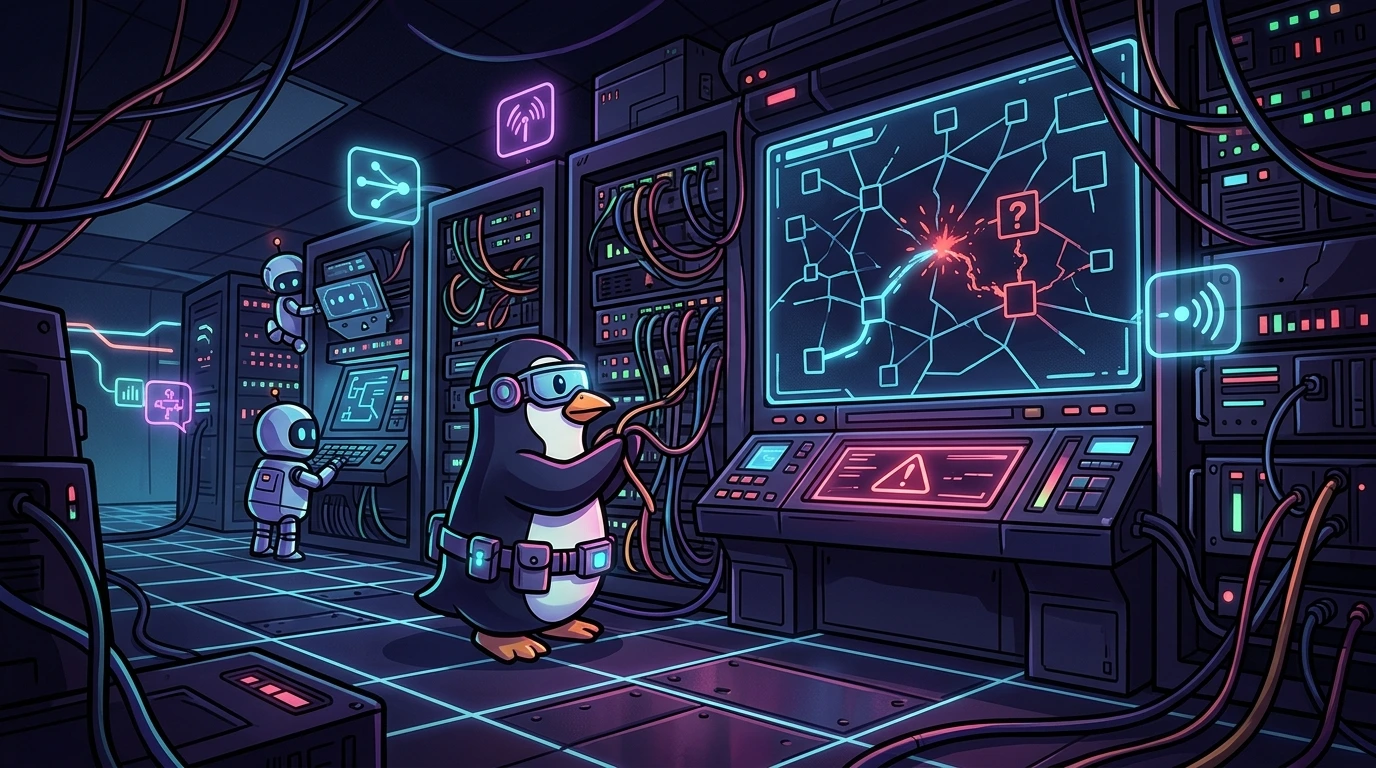
The mechanics behind smooth cursor motion and auto-zoom#
Creating technical tutorials and product demonstrations on Linux often faces a common goal: achieving that polished look popularized by tools like Screen Studio (on macOS), where the camera smoothly glides into click targets and the mouse pointer travels without jitter.
Here is how mathematical cursor interpolation works, the best AppImage editors for post-production, and how to configure real-time zoom in OBS Studio (across Linux Mint with X11 and CachyOS with Wayland).
1. How smooth cursor interpolation works under the hood#
A smoothed cursor is not just a direct capture of the physical display. It relies on coordinate post-processing:
- Two-stream recording: The app captures the display video feed (via PipeWire or X11) and simultaneously logs timestamped
(X, Y)mouse coordinates and clicks. - Path interpolation: The editor discards the pixelated raw mouse and computes smooth curves (using Bézier curves or linear lerp interpolation) between recorded points.
- Vector overlay: A clean vector cursor is rendered over the footage following that smoothed path, eliminating hand micro-shakes and adding natural easing.
2. Visual editors with post-processing (appimage)#
If you want to record first and customize zoom levels, backgrounds, and rounded window borders afterward:
- ScreenArc & Recordly: Open-source utilities that offer an interactive timeline to toggle auto-zoom on click and export in 16:9 or 9:16.
- Running via AppImage:
# Download official release (ScreenArc example)
wget https://github.com/tamnguyenvan/screenarc/releases/latest/download/ScreenArc-x86_64.AppImage
chmod +x ScreenArc-x86_64.AppImage
./ScreenArc-x86_64.AppImage
3. Real-time capture and zoom with OBS studio#
If you record long sessions or terminal demos and do not want to spend time rendering in post-production, OBS Studio exports your video the instant you click "Stop Recording".
A. Preventing UI freezes#
Many community zoom scripts use synchronous pynput loops that block OBS's Qt main thread, freezing the user interface on Linux.
B. The fix: decoupled event sidecar#
On Linux Mint (X11) and CachyOS, run a lightweight sidecar script in the background that sends hotkey events to OBS with debounce protection:
#!/usr/bin/env python3
# autoclick_zoom_sidecar.py - Asynchronous listener with debounce and X11/Wayland support
import os
import time
import subprocess
from pynput import mouse

LAST_CLICK = 0
DEBOUNCE_SECONDS = 0.8
IS_WAYLAND = os.environ.get("XDG_SESSION_TYPE", "").lower() == "wayland"

def trigger_hotkey():
    # Trigger configured OBS Studio hotkey (e.g. F12)
    if IS_WAYLAND:
        # Under Wayland (CachyOS), use wtype or ydotool as xdotool does not inject native events
        subprocess.run(["wtype", "-k", "F12"], check=False)
    else:
        # Under X11 (Linux Mint / Cinnamon), xdotool interacts directly with the display server
        subprocess.run(["xdotool", "key", "F12"], check=False)

def on_click(x, y, button, pressed):
    global LAST_CLICK
    if pressed and button == mouse.Button.left:
        now = time.time()
        if now - LAST_CLICK > DEBOUNCE_SECONDS:
            LAST_CLICK = now
            trigger_hotkey()

with mouse.Listener(on_click=on_click) as listener:
    listener.join()
C. OBS studio setup#
- Install OBS Studio via native package managers (
apt install obs-studioorpacman -S obs-studio). - Save scripts in a local path:
~/.config/obs-studio/scripts/. - In OBS, open Tools > Scripts, load your zoom script, and link the hotkey trigger to your screen capture source.
4. Comparison of Linux recording tools#
| Tool | Format | Post-processing | Interpolation | Best Use Case |
|---|---|---|---|---|
| ScreenArc / Recordly | AppImage | Yes (visual timeline) | Yes (Bézier / Vector) | Product demos and short clips |
| OBS Studio + Sidecar | Native (Apt / Pacman) | No (real-time export) | Yes (camera framing) | Long lectures and terminal walkthroughs |
| Cursorful | Chromium Extension | Yes (in browser) | Yes (smoothed) | Fast web application demos |
| Gromit-MPX | Native (F9) | No (on-screen drawing) | No | Live annotations and whiteboard highlights |
Practical takeaways for Linux recording#
- Avoid synchronous scripts in OBS: Never run blocking mouse loops inside the UI thread; use event-driven sidecars.
- Keep PipeWire updated on Wayland: Ensure
pipewire,wireplumber, andxdg-desktop-portalpackages are current to prevent cursor event latency. - Match tool to workflow: Use ScreenArc for polished product launches and OBS Studio for long terminal sessions that need immediate export.
Was this article helpful?
Leave a quick reaction to help prioritize future technical guides:
See also

This post is licensed under CC BY-NC.
Comments
Join the discussion below.
0 comments