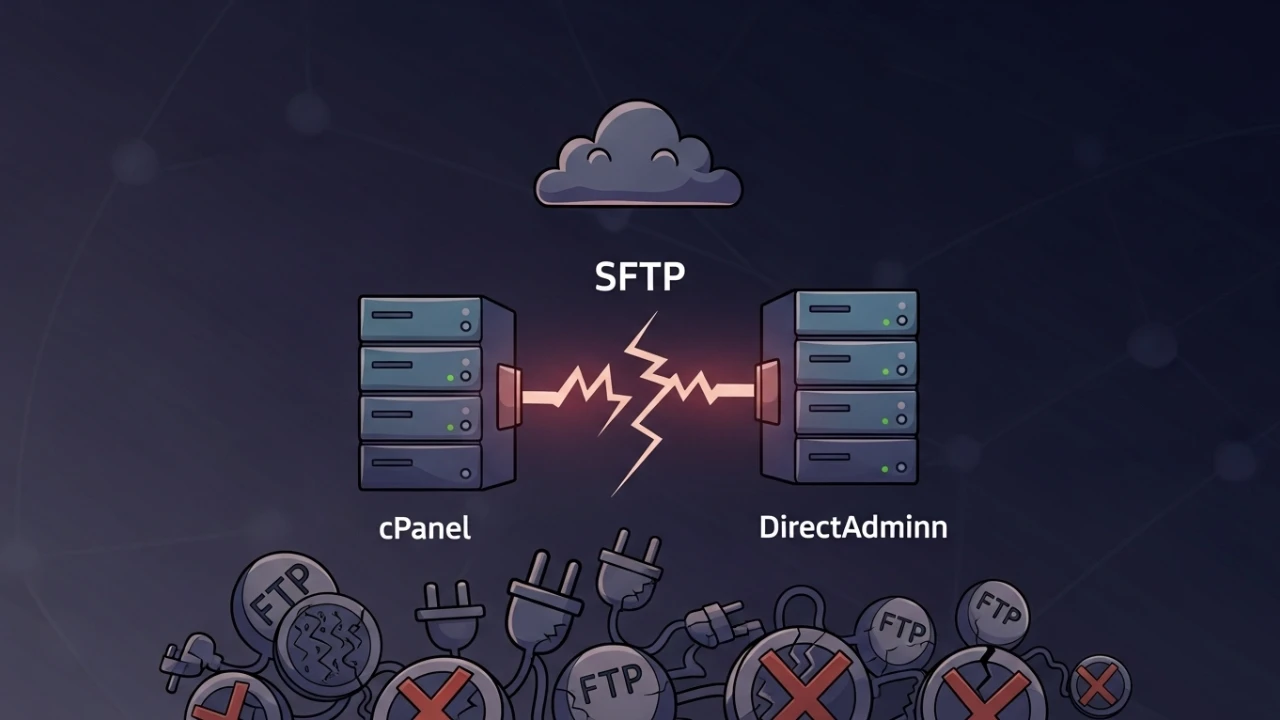
This is a remarkably common support incident in managed hosting environments: an additional FTP account connects perfectly via FileZilla using FTPS but repeatedly fails on SFTP with a "Permission denied" error. Support teams often treat this as a simple "incorrect password" issue and reset the credentials, but the forensic reality points toward an authentication architecture conflict, not a typo.
1. Real system users vs. virtual daemon users#
To diagnose this failure, it is essential to understand how Linux handles connections for each protocol:
- SFTP (SSH File Transfer Protocol): This is a subsystem of the SSH daemon (
sshd). All authentication requests pass through the OS Pluggable Authentication Modules (PAM) stack, verifying real system accounts listed in/etc/passwd. - FTPS (FTP over TLS): This protocol utilizes a dedicated FTP daemon (such as Pure-FTPd or ProFTPD). In control panels like cPanel and DirectAdmin, additional FTP accounts are virtual users. Their credentials are managed internally by the panel databases and validated directly by the FTP daemon, completely bypassing
/etc/passwd.
Takeaway: SSH has no knowledge of virtual FTP accounts and cannot authenticate them. By design, additional FTP accounts created in admin panels cannot connect via SFTP on port 22.
2. Operational diagnostics: validating the FTP service#
If clients cannot connect even using FTPS, follow this terminal diagnostics workflow to verify the daemon's status:
# 1. Verify if the FTP daemon is active (Pure-FTPd or ProFTPD)
systemctl status pure-ftpd
# or
systemctl status proftpd

# 2. Check if the daemon is listening on the default port 21 or 990 (Implicit FTPS)
ss -lntp | grep -E "21|990"

# 3. Test local responsiveness on port 21
nc -zv localhost 21
# or
telnet localhost 21

# 4. Check if the user is virtual or a system-level account
getent passwd ftpuser || echo "Virtual account detected: does not exist in /etc/passwd"
3. Explicit FTPS (port 21) vs. implicit FTPS (port 990)#
FTP over TLS encryption can be established in two different modes:
- Explicit FTPS (Port 21): The client opens a traditional plaintext connection and sends the
AUTH TLSorAUTH SSLcommand to upgrade the control connection to TLS before transmitting credentials. This is the most compatible method in shared hosting environments. - Implicit FTPS (Port 990): The connection begins with a TLS handshake immediately upon establishing the TCP socket on port 990. No plaintext negotiation occurs.
How to test TLS connections via command line:#
# Test Explicit TLS negotiation (Port 21)
openssl s_client -connect domain.com:21 -starttls ftp

# Test Implicit TLS connection (Port 990)
openssl s_client -connect domain.com:990
4. Security hardening in pure-ftpd and proftpd#
Default FTP daemon configurations are insecure. You should enforce strict encryption rules and resource usage limits.
Disabling plain FTP (enforcing TLS cryptography)#
Plaintext connections expose credentials to sniffing attacks. The daemon must be configured to reject unencrypted links.
On Pure-FTPd (standard on cPanel/DirectAdmin):
# Edit the TLS configuration file
# Values: 0 (No TLS), 1 (Optional TLS), 2 (Force TLS)
echo "2" | sudo tee /etc/pure-ftpd/conf/TLS

# Restart the service
sudo systemctl restart pure-ftpd
On ProFTPD:
# Edit /etc/proftpd/proftpd.conf or /etc/proftpd/conf.d/tls.conf
# Add or modify the mod_tls block:
<IfModule mod_tls.c>
    TLSEngine on
    TLSRequired on
</IfModule>

# Restart the service
sudo systemctl restart proftpd
Restricting weak ciphers in FTPS#
Ensure only robust encryption algorithms are negotiated during the handshake.
On Pure-FTPd:
# Set strong ciphers in the configuration file
echo "HIGH:!aNULL:!eNULL:!EXPORT:!DES:!3DES:!MD5:!PSK:!RC4" | sudo tee /etc/pure-ftpd/conf/TLSCipherSuite

# Restart the service
sudo systemctl restart pure-ftpd
Limiting connection attempts (brute-force prevention)#
Protect the system against connection exhaustion and dictionary attacks.
On Pure-FTPd:
# Limit the maximum number of connections per IP address (e.g., 3)
echo "3" | sudo tee /etc/pure-ftpd/conf/MaxClientsPerIP
sudo systemctl restart pure-ftpd
On ProFTPD:
# Add to your proftpd.conf file
MaxClientsPerHost 3
MaxClients 100
For SFTP (SSH) brute force protection, set up Fail2Ban by editing /etc/fail2ban/jail.local:
[sshd]
enabled = true
port = ssh
maxretry = 3
bantime = 3600
Apply rules with sudo systemctl restart fail2ban.
5. Configuring passive mode and firewall rules#
FTP uses distinct channels for command control (port 21) and data transfer (random ports provided by the server). On servers protected by firewalls or NAT, passive transfers will fail unless a specific port range is defined and opened.
Configure passive ports in pure-ftpd:#
# Define the passive port range (e.g., 30000 to 31000)
echo "30000 31000" | sudo tee /etc/pure-ftpd/conf/PassivePortRange

# If your server is behind NAT (e.g., AWS EC2 or Google Cloud), force the public external IP:
echo "SERVER_PUBLIC_IP" | sudo tee /etc/pure-ftpd/conf/ForcePassiveIP

# Restart the service
sudo systemctl restart pure-ftpd
Open the passive ports in UFW firewall:#
sudo ufw allow 21/tcp
sudo ufw allow 990/tcp
sudo ufw allow 30000:31000/tcp
sudo ufw reload
6. Creating a chrooted SFTP user (jailed shell)#
If your client strictly requires a secure SFTP connection for a third party while ensuring directory isolation, you must configure a real Linux system user with specific rules inside sshd_config.
# 1. Create a system user without shell access (/bin/false)
sudo useradd -m -s /bin/false sftpuser
sudo passwd sftpuser

# 2. Set home directory ownership to root (mandatory requirement for SFTP chroot)
sudo chown root:root /home/sftpuser
sudo chmod 755 /home/sftpuser

# 3. Create the writeable upload folder inside the jailed root
sudo mkdir -p /home/sftpuser/uploads
sudo chown sftpuser:sftpuser /home/sftpuser/uploads
Configure chroot rules in SSHD#
Edit the /etc/ssh/sshd_config file and add the following block at the bottom:
Match User sftpuser
    ForceCommand internal-sftp
    ChrootDirectory /home/%u
    AllowTcpForwarding no
    X11Forwarding no
    PermitTunnel no
Test SSH configurations for syntax errors before reloading:
sudo sshd -t
sudo systemctl restart sshd
7. FTP log mapping and client verification#
When debugging connection errors or failed login requests for virtual FTP users, check the daemon log files:
- Pure-FTPd Log:
/var/log/pure-ftpd.logorjournalctl -u pure-ftpd -f - ProFTPD Log:
/var/log/proftpd/proftpd.logorjournalctl -u proftpd -f - General System Messages:
/var/log/messagesor/var/log/syslog
Testing FTP connectivity locally:#
# Test using curl (FTPS)
curl -v --ftp-ssl --user "[email protected]:password" ftp://domain.com:21/

# Test using lftp (forcing TLS)
lftp -u "[email protected],password" -e "set ftp:ssl-force on; ls; bye" domain.com
8. Control panel configurations (cPanel and DirectAdmin)#
If you run a control panel environment, service configurations should be managed via the panel UI to prevent custom changes from being overwritten during system updates.
Cpanel/whm configuration:#
- Navigate to WHM > Service Configuration > FTP Server Selection.
- Select Pure-FTPd (recommended) or ProFTPD.
- Go to WHM > FTP Server > TLS/SSL Management to configure certificates and enforce TLS connections.
DirectAdmin configuration:#
- Under the Admin level, go to Server Manager > FTP Server.
- Set daemon behaviors and verify that SSL/TLS is enabled.
- Configure passive port ranges in
/etc/pure-ftpd.confusing DirectAdmin's secure file manager.
Technical comparison: FTP vs. FTPS vs. SFTP#
| Feature | FTP | FTPS | SFTP |
|---|---|---|---|
| Underlying Protocol | Standard FTP | FTP over TLS | SSH (Secure Shell) |
| Default Port | 21 | 21 (Explicit) / 990 (Implicit) | 22 (Or custom SSH port) |
| Encryption | None (Plaintext) | TLS/SSL | Native SSH |
| Authentication | Virtual or System | Virtual or System | System Users Only |
| Jail (Chroot) | Native by daemon | Native by daemon | Requires manual configuration |
| Firewall Setup | Complex (Passive range) | Complex (Passive range) | Simple (Single SSH port) |
| Recommendation | ❌ Never Use | ✅ Recommended for clients | ✅ Recommended for Admins |
Complete diagnostics script (diagnose-ftp.sh)#
This utility automates checks on the operational status of your file transfer services.
#!/bin/bash
# diagnose-ftp.sh - FTP/FTPS/SFTP services diagnostics

set -euo pipefail

echo "=== FILE TRANSFER SERVICES DIAGNOSTICS ==="
echo ""

# 1. Verify running daemons
echo "[1/5] Verifying daemon status:"
if systemctl is-active --quiet pure-ftpd 2>/dev/null; then
    echo "  ✅ Pure-FTPd is ACTIVE."
elif systemctl is-active --quiet proftpd 2>/dev/null; then
    echo "  ✅ ProFTPD is ACTIVE."
else
    echo "  ❌ No standard FTP daemon is running."
fi

if systemctl is-active --quiet sshd 2>/dev/null; then
    echo "  ✅ SSHD (SFTP) is ACTIVE."
else
    echo "  ❌ SSHD (SFTP) is INACTIVE."
fi

# 2. Check listening ports
echo ""
echo "[2/5] Checking listening ports (ss):"
ss -lntup | grep -E "21|990|22" || echo "  ⚠️ No active listeners on ports 21, 990, or 22."

# 3. Check TLS configurations for Pure-FTPd
echo ""
echo "[3/5] Verifying FTP TLS settings:"
if [ -f /etc/pure-ftpd/conf/TLS ]; then
    TLS_VAL=$(cat /etc/pure-ftpd/conf/TLS)
    case "$TLS_VAL" in
        0) echo "  ⚠️ TLS Disabled (Insecure!)." ;;
        1) echo "  ✅ TLS Optional (Accepts plaintext)." ;;
        2) echo "  ✅ TLS Enforced (Secure)." ;;
        *) echo "  ❓ Custom or unknown TLS value: $TLS_VAL" ;;
    esac
else
    echo "  ℹ️ /etc/pure-ftpd/conf/TLS not found."
fi

# 4. Check IP connection limits
echo ""
echo "[4/5] Checking connection limits per IP:"
if [ -f /etc/pure-ftpd/conf/MaxClientsPerIP ]; then
    echo "  Pure-FTPd MaxClientsPerIP: $(cat /etc/pure-ftpd/conf/MaxClientsPerIP)"
else
    echo "  No explicit MaxClientsPerIP limit found."
fi

# 5. Extract recent logs
echo ""
echo "[5/5] Extracting recent error logs (last 5 minutes):"
if [ -f /var/log/pure-ftpd.log ]; then
    tail -n 10 /var/log/pure-ftpd.log | grep -i "fail\|error\|deny" || echo "  No errors found in Pure-FTPd logs."
else
    journalctl -u pure-ftpd --since "5 minutes ago" 2>/dev/null | grep -i "fail\|error" || echo "  No errors found in journalctl."
fi

echo ""
echo "=== DIAGNOSTICS COMPLETED ==="
Make the script executable:
chmod +x diagnose-ftp.shSupport team checklist (n1/n2 SLA)#
Use this operational list to quickly triage "FTP cannot connect" tickets:
- [ ] Identify Protocol: Is the client connecting via SFTP (Port 22) or FTPS (Port 21)?
- [ ] Account Type: Is the user the primary hosting account (system user) or an additional FTP user (virtual)?
- [ ] Verify Port: Does the port matches the configured protocol inside the FTP client?
- [ ] Firewall Ports: If a connection times out on data transfers, verify if the passive port range (
PassivePortRange) is allowed in the firewall. - [ ] Log Inspection: Monitor connection attempts live using
tail -f /var/log/pure-ftpd.logto identify credentials failures.
Was this article helpful?
Leave a quick reaction to help prioritize future technical guides:
See also




This post is licensed under CC BY-NC.
Comments
Join the discussion below.
0 comments