
During email delivery troubleshooting on a cPanel/CloudLinux server, I identified a classic scenario: .eml attachments blocked globally by the system filter, causing the side effect of frozen bounces in the queue.
The objective wasn't to "open everything up," but to implement controlled release per domain without compromising default protection for dangerous extensions.
1) Symptom observed in production and ripple effect#
The rejection occurred with the following filter message:
This message has been rejected because it has a potentially executable attachment "teste.eml"In the logs, the critical point was the ripple effect on bounces:
Process failed (1) when writing error message ... (frozen)This ripple effect occurs because, when a message containing a .eml attachment is rejected, Exim attempts to generate a non-delivery report (bounce). However, this error report contains headers or snippets of the original rejected message, including the .eml extension. When passing through the global system filter, the bounce itself is rejected because it contains the blocked extension. As a result, Exim fails when trying to write the error message and freezes the bounce in the queue (frozen), leading to resource waste, inode saturation, and log clutter on the mail server.
2) Root cause and Exim processing architecture#
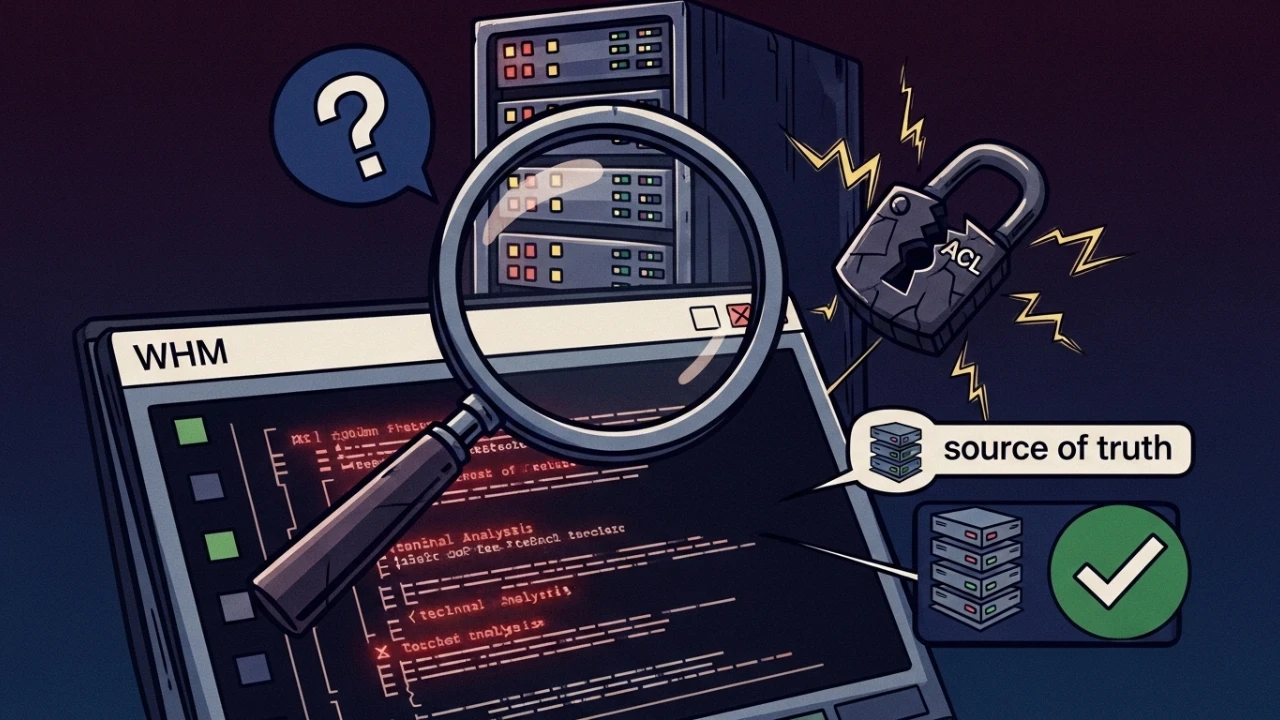
The blockage wasn't just in the ACLs (Access Control Lists). The main issue was in the global system filter:
- File:
/etc/cpanel_exim_system_filter - Blockage of extensions occurs before processing custom ACLs.
- In many environments, this list appears as "read-only" in the WHM for direct editing.
In the Exim architecture, the system filter is a global processing layer executed before user-level filters or final delivery directives are processed. When an inbound or outbound message is submitted to Exim, it first passes through the global system filter. If the /etc/cpanel_exim_system_filter file contains the .eml extension inside the rule that validates potentially dangerous attachments (treated as potential executables due to historical vulnerabilities in readers like Outlook), the message is dropped or rejected immediately. Adjusting only the ACL without addressing the system filter does not resolve the issue consistently.
3) Two-layer mitigation strategy#
I implemented a structured two-layer solution to meet business demands without compromising the server's overall cybersecurity:
- Global Layer (System Filter): Remove only the
.emlextension from the global block list in a custom copy of the Exim system filter file, allowing message processing to continue to the next stage. - Policy Layer (ACL): Configure Exim to validate
.emlattachments dynamically against a domain whitelist in/etc/exim/allowed_ANEXOS_domains.txt.
With this, the following is guaranteed:
- Global security for truly dangerous executable attachments (like
.exe,.cmd,.bat) remains fully active. .emlfiles are treated as a controlled exception, authorized only for domains that require this functionality for legal compliance or operational reasons.- Repetitive manual maintenance or completely disabling the Exim system filter is avoided.
4) Mandatory preventive backups#
Before making any changes to mail configuration files or Exim rules in cPanel, it is imperative to create a backup of all files involved. This ensures a quick restore of the mail service in case of syntax errors or unforeseen behaviors. Run the following commands in the terminal as the root user:
# Backup the cPanel system filter with a timestamp
cp -p /etc/cpanel_exim_system_filter /root/cpanel_exim_system_filter.bak.$(date +%Y%m%d)

# Backup the main Exim configuration
cp /etc/exim.conf /root/exim.conf.bak.$(date +%Y%m%d)

# Backup the domain whitelist file (if it already exists)
cp /etc/exim/allowed_ANEXOS_domains.txt /root/allowed_ANEXOS_domains.txt.bak.$(date +%Y%m%d) 2>/dev/null || true
After making the backups, ensure the files were saved correctly and preserve the original permissions and sizes using ls -la.
5) Creating a persistent custom filter and the blocked extensions list#
Never directly edit the /etc/cpanel_exim_system_filter file. Any changes to the default file will be silently overwritten during automatic cPanel updates (such as upcp runs). Instead, create a persistent custom filter:
cp -p /etc/cpanel_exim_system_filter /etc/cpanel_exim_system_filter_custom
nano /etc/cpanel_exim_system_filter_custom
Open the /etc/cpanel_exim_system_filter_custom file and locate the extension validation rule. It usually looks like this:
if $message_body_attachmentpart: is not "" and
   $message_body_attachmentpart: matches "\\\.(ad[ep]|ba[st]|chm|cmd|com|cpl|crt|eml|exe|hlp|hta|in[fs]|isp|jse?|lnk|md[be]|ms[cipt]|pcd|pif|reg|scr|sct|shs|url|vb[se]|ws[fhc])$"
Remove the eml| or |eml expression from the extension list, leaving the rule as follows:
if $message_body_attachmentpart: is not "" and
   $message_body_attachmentpart: matches "\\\.(ad[ep]|ba[st]|chm|cmd|com|cpl|crt|exe|hlp|hta|in[fs]|isp|jse?|lnk|md[be]|ms[cipt]|pcd|pif|reg|scr|sct|shs|url|vb[se]|ws[fhc])$"
All other dangerous extensions that remain blocked in the global filter are:
- Scripts and Installers:
.bat,.cmd,.exe,.msi,.msp,.pif,.scr - Shortcuts and Links:
.lnk,.url,.shs - System Components:
.cpl,.crt,.reg,.sys,.dll,.drv - Active Code and Macros:
.vbs,.vbe,.js,.jse,.wsf,.wsh,.hta,.chm
Validate which terms are still inserted in the rule using the command:
grep -E "exe|cmd|bat|eml" /etc/cpanel_exim_system_filter_customTo apply the custom filter in the WHM panel, follow the path below:
- Log in to WHM -> Service Configuration -> Exim Configuration Manager.
- On the Basic Editor tab, click the Filters sub-tab.
- Locate the System Filter File directive.
- Select the option corresponding to the custom file and enter the full path:
/etc/cpanel_exim_system_filter_custom. - Click Save at the bottom of the screen to compile the change.
6) Configuring Exim MIME ACLs with whitelists#
With the system filter now allowing the file type to pass, the restriction must be implemented in the Exim control layer. Log in to WHM -> Service Configuration -> Exim Configuration Manager and click the Advanced Editor tab.
Locate the section for adding custom ACLs and insert the following rules:
6.1 inbound SMTP ACL (acl_smtp_mime)#
Under the acl_smtp_mime: declaration, add the validation directives:
acl_smtp_mime:
  # Allow legitimate bounces to prevent freezing messages in the queue
  accept sender = :

  # Check if the destination domain of the attachment is whitelisted
  warn
    set acl_m_allowed_recipient = ${lookup{${lc:${domain:$recipients}}}lsearch{/etc/exim/allowed_ANEXOS_domains.txt}{yes}{no}}
    log_message = DEBUG SMTP: Recipient Domain Allowed -> $acl_m_allowed_recipient

  # Deny .eml if the domain is not whitelisted
  deny
    log_message = DENY: disallowed "$mime_filename" - EML not allowed for recipient
    condition = ${if or{ \
                     {and{ {!eq{$acl_m_allowed_recipient}{yes}} {match{$mime_filename}{\N\.eml$\N}} }} \
                     {match{$mime_filename}{\N\.(ad[ep]|ba[st]|chm|cmd|com|cpl|crt|exe|hlp|hta|in[fs]|isp|jse?|lnk|md[be]|ms[cipt]|pcd|pif|reg|scr|sct|shs|url|vb[se]|ws[fhc])$\N}} \
                   } {yes}{no}}
    message = Attachment '$mime_filename' has a forbidden extension.
  accept
Critical note on the accept sender = : directive: This rule accepts messages whose envelope sender is empty (indicated by <>). In the SMTP ecosystem, messages with an empty sender correspond to automatic non-delivery reports (bounces). Adding this exception at the top of the ACL prevents error reports containing original .eml headers from being rejected, eliminating frozen bounces in the server queue.
6.2 local submission/webmail ACL (acl_not_smtp_mime)#
This ACL manages emails sent from internal server scripts or by logged-in users via local webmail interfaces (such as Roundcube). Locate acl_not_smtp_mime: and apply the corresponding rule:
acl_not_smtp_mime:
  # Check if the local sender's domain is whitelisted
  warn
    set acl_m_allowed_sender = ${lookup{${lc:$sender_address_domain}}lsearch{/etc/exim/allowed_ANEXOS_domains.txt}{yes}{no}}
    log_message = DEBUG LOCAL: Sender Domain Allowed -> $acl_m_allowed_sender

  # Deny .eml if the local sender is not authorized
  deny
    log_message = DENY LOCAL: disallowed "$mime_filename" - EML not allowed for sender
    condition = ${if or{ \
                     {and{ {!eq{$acl_m_allowed_sender}{yes}} {match{$mime_filename}{\N\.eml$\N}} }} \
                     {match{$mime_filename}{\N\.(ad[ep]|ba[st]|chm|cmd|com|cpl|crt|exe|hlp|hta|in[fs]|isp|jse?|lnk|md[be]|ms[cipt]|pcd|pif|reg|scr|sct|shs|url|vb[se]|ws[fhc])$\N}} \
                   } {yes}{no}}
    message = Attachment '$mime_filename' has a forbidden extension for sending.
  accept
This structure ensures that unauthorized local domains cannot be vectors for sending .eml attachments to the outside world, mitigating phishing risks.
7) Creating and managing the allowed domains whitelist#
Create the whitelist file in the path specified by the Exim lookup rules:
cat > /etc/exim/allowed_ANEXOS_domains.txt << 'LIST'
allowed-company.com
partner-domain.com
LIST
To ensure the correct processing of lookups in Exim's plain text database, observe the following formatting rules:
- Enter exactly one domain per line.
- Do not leave empty lines at the end or in the middle of the file.
- Do not include special characters, comment keys (such as
#), or spaces at the beginning or end of each domain. - Use only lowercase letters.
8) Filesystem permissions audit#
For the changes to take effect securely and to allow the Exim daemon to read the necessary parameters without generating permission denied errors in the logs, configure the correct permissions and owner of the files. In cPanel, Exim usually runs under the system user mail. Execute the following commands:
# Set owner and group of the custom filter
chown root:root /etc/cpanel_exim_system_filter_custom
chmod 644 /etc/cpanel_exim_system_filter_custom

# Set owner and group of the domain whitelist
chown root:root /etc/exim/allowed_ANEXOS_domains.txt
chmod 644 /etc/exim/allowed_ANEXOS_domains.txt
Verify access permissions by running a test read simulating the system mail service execution user:
sudo -u mail cat /etc/cpanel_exim_system_filter_custom > /dev/null
sudo -u mail cat /etc/exim/allowed_ANEXOS_domains.txt > /dev/null
If both commands exit with status 0 (without any "Permission denied" messages), the filesystem permissions are correct and secure.
9) Ssl/tls verification on the mail server#
Messages containing .eml attachments often carry critical corporate and transactional data. Ensuring that transport encryption (SSL/TLS) is active and valid prevents credential leaks and unauthorized reading of attachments on the network. Verify Exim's encryption settings with the steps below:
- Check the certificate and private key active in the Exim settings:
exim -bP tls_certificate
exim -bP tls_privatekey- Test the secure connection by performing an SSL/TLS handshake directly on the secure SMTP port (465):
openssl s_client -connect localhost:465 </dev/null 2>/dev/null | grep -i "ssl"- Validate the expiration period and the issuer of the associated SSL certificate:
openssl x509 -in /etc/ssl/certs/exim.crt -noout -dates(Replace /etc/ssl/certs/exim.crt with the certificate path returned by querying tls_certificate in step 1).
10) SPF, DKIM, and DMARC validation#
Allowing .eml files opens up possibilities for identity spoofing attacks if edge email authentication controls are not active and operational. Make sure the DNS authentication mechanisms are working:
- Check if Exim is actively signing and verifying DKIM signatures in the main configuration file:
grep -i "dkim" /etc/exim.conf- Perform DNS test queries to verify the TXT records of the security keys:
# Validate SPF record
dig TXT your-domain.com +short | grep -i "v=spf1"

# Validate DMARC record
dig TXT _dmarc.your-domain.com +short

# Validate the DKIM selector public key
dig TXT default._domainkey.your-domain.com +short
11) Post-configuration validation, queue, and logs#
Once the settings are complete, run the following tests and monitoring steps to ensure the integrity of the production environment:
11.1 test Exim configuration syntax#
Before reloading the daemon, validate the Exim configuration file syntax to ensure there are no structural errors or corrupted blocks:
exim -bV11.2 verify variables loaded in memory#
Confirm that Exim is pointing to the custom filter file and has loaded the corresponding ACLs:
exim -bP system_filter
exim -bP acl_smtp_mime
exim -bP acl_not_smtp_mime
After confirming the consistency of the variables, reload Exim using the cPanel tool:
/scripts/restartsrv_exim11.3 monitor Exim logs in real time#
Use the triage commands on the /var/log/exim_mainlog file to inspect delivery failures and behaviors:
# Monitor general errors, denials, and failures
tail -100 /var/log/exim_mainlog | grep -E -i "error|reject|deny"

# Filter messages blocked by the filter or ACL
grep -i "blocked" /var/log/exim_mainlog | tail -20

# Check successful deliveries (indicated by the => operator)
grep -i "=>" /var/log/exim_mainlog | tail -20

# Search for frozen bounces
grep -i "frozen" /var/log/exim_mainlog | tail -20
11.4 check the email queue and frozen bounces#
Audit the email queue to validate that message flow has normalized:
# Show the number of messages in the queue
exim -bpc

# List all messages in the queue
exim -bp

# Count how many messages are marked as frozen
exim -bp | grep -c "frozen"

# Inspect the delivery logs of a specific message in the queue
exim -Mvl <msgid>
11.5 validate antivirus and antispam daemons#
To ensure that bypassing .eml files does not compromise server security against malware, verify the status of the active protection mechanisms (ClamAV and SpamAssassin):
# Check the status of the ClamAV daemon
systemctl status clamav-daemon 2>/dev/null || systemctl status clamd 2>/dev/null

# Check the version of the virus signatures
freshclam --version

# Check the status of SpamAssassin (spamd)
systemctl status spamassassin 2>/dev/null || pstree -p | grep spamd

# Check the logs to see if mail traffic is passing through safety validation
tail -50 /var/log/exim_mainlog | grep -i "clamav\|spamassassin\|spamd"
12) Detailed rollback and contingency plan#
If any unexpected behavior occurs in sending or receiving emails after applying the custom filter, follow the rollback plan below to immediately restore the Exim ecosystem to its secure initial baseline:
- Revert the system filter path to the default cPanel file in WHM or restore the backup file via CLI:
cp -p /root/cpanel_exim_system_filter.bak.* /etc/cpanel_exim_system_filter- Restore the compiled Exim configuration from the saved backup:
cp /root/exim.conf.bak.* /etc/exim.conf- Delete the domain whitelist file:
rm -f /etc/exim/allowed_ANEXOS_domains.txt- Restart the Exim service to apply the stable default configuration:
/scripts/restartsrv_exim- Confirm that Exim has returned to the baseline by checking the configuration syntax and monitoring the error logs for anomalies:
exim -bV
tail -50 /var/log/exim_mainlog
13) Hardening checklist and risk matrix#
13.1 operational checklist for .eml attachment activation#
Below are the essential validation tasks for compliance when allowing .eml attachments:
- [ ] Timestamped preventive backups of
/etc/cpanel_exim_system_filterand/etc/exim.conffiles created. - [ ] Custom filter file
/etc/cpanel_exim_system_filter_customcreated, removing the|emlextension. - [ ] Custom filter path activated in the WHM administrative panel.
- [ ] The
acl_smtp_mimevalidation rule configured with theaccept sender = :bounce-protection directive. - [ ] Local
acl_not_smtp_mimevalidation rule configured for outgoing submission monitoring. - [ ] Whitelist file
/etc/exim/allowed_ANEXOS_domains.txtcreated, containing one domain per line. - [ ] Recommended permissions of
644androot:rootownership applied to the created files. - [ ] Exim
mailuser read access to filesystem files validated. - [ ] ClamAV and SpamAssassin daemons verified to be active and running stably.
- [ ] Final syntax validation run with
exim -bVand the service reloaded.
13.2 risk matrix and technical impact#
The following table consolidates threats, operational severity, and the applied mitigation actions:
| Risk / Threat | Severity | Description | Applied Mitigation Action |
|---|---|---|---|
| Frozen Bounces | High | Failures in delivering emails with .eml cause non-delivery reports to be blocked, filling the queue. | Implementation of the accept sender = : directive at the start of the MIME ACL to allow bounces. |
| Accidental Execution | High | Global release of harmful executable attachments masked as .eml or other types. | Full preservation of rules against dangerous executables (like .exe, .bat) in the system filter. |
| Spam / Spoofing | Medium | Phishing vectors utilizing .eml emails attached without domain ownership checks. | Creation of a strict whitelist and mandatory validation of SPF, DKIM, and DMARC records in the sender's DNS. |
| Configuration Overwrite | Medium | Automatic cPanel updates (upcp) overwrite manual changes made to the default filter. | Persistent custom filter file /etc/cpanel_exim_system_filter_custom configured. |
| Incorrect Permissions | Low | Exim fails to read whitelist or filter rule files, generating "Permission Denied" and general failure. | Rigorous ownership (root:root) and permission (644) settings in the filesystem. |
Technical conclusion#
Allowing .eml attachments in Exim/cPanel environments must be implemented surgically. The combination of a persistent custom system filter and domain-granular MIME ACLs ensures the operational flexibility the organization requires while keeping security directives in place and preventing frozen emails from building up in the mail server queue.
Was this article helpful?
Leave a quick reaction to help prioritize future technical guides:
See also



This post is licensed under CC BY-NC.
Comments
Join the discussion below.
0 comments